TL;DR
- Need everything in one place? Grab FlexClip. Script, visuals, voice, captions. All in one app.
- Need a quick logo animation or promo clip? Grab Animazer. Pick a template. Done in minutes.
- Sitting on podcast episodes with no video version? Grab SoundMadeSeen. Drop in your audio. Get a finished video back.
- Need strong narration without a mic? Grab Vocallab AI. Clone your voice once. Reuse it forever.
So, match your content type to the tool above and start today. These four ai video generator tools cover almost every content need without a monthly bill.
AI Video Generator Tools
You type a search for AI video tools because you want video content fast. You do not want a steep learning curve.
You do not want a $50 monthly bill for software you barely open. You want something that turns an idea, a script, or a podcast file into a finished video today.
I run a large online creator group. Members ask me this question every week. What tool actually works? What tool wastes your time?
So I tested the top picks myself and built this list around what solves real problems, not what looks good in a demo video.
Let’s see four AI video tools worth your money in 2026. Each one solves a different problem.
Read the comparison table first. Then jump to the tool that matches your exact need.
AI Video Generator Tools for Quick Video Creation
| Tool | Best For | Starting Price | Core Strength |
| FlexClip | Full video creation from text or slides | $99 lifetime | Text-to-video AI models plus 6,000+ templates |
| Animazer | Fast promo videos and animated logos | $25 lifetime | Template-based animation, zero editing skill needed |
| SoundMadeSeen | Turning podcasts and audio into video | $39 lifetime | Audio-to-video conversion with auto captions |
| Vocallab AI | Voiceover-driven video content | $49 lifetime | 260 AI voices plus instant voice cloning |
FlexClip: The Complete AI Video Generator Tool
What FlexClip Does
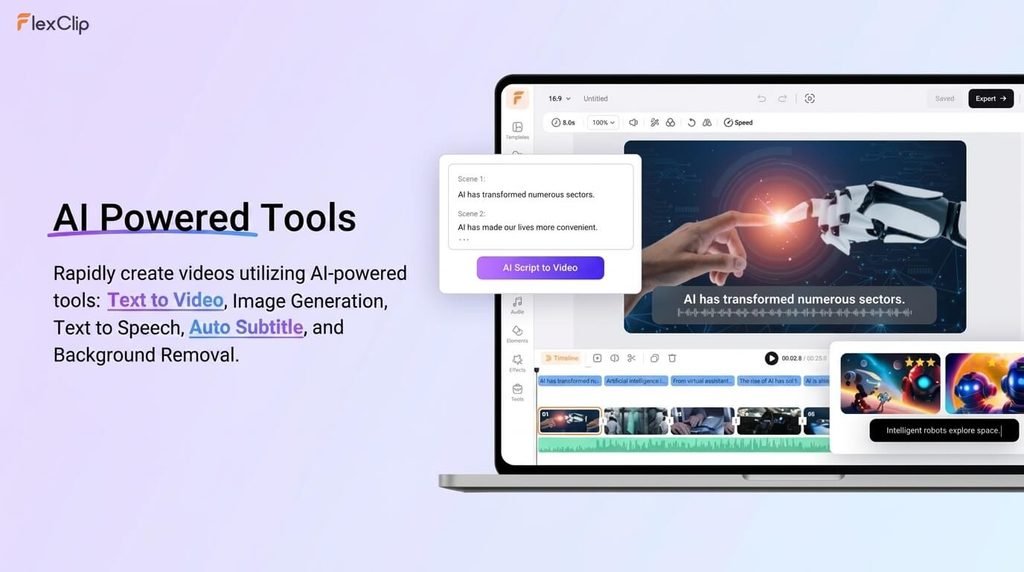
FlexClip builds full videos from a text prompt or an image. Type what you want. Pick a style.
The AI creates the scene for you. It runs in your browser, so you skip the download and setup step entirely.
The platform pulls from strong AI video models, including Veo 3, Kling, and Sora 2. This matters because scene quality depends on the model behind it.
Weak models give you stiff, fake-looking clips. FlexClip avoids that problem by using top-tier engines.
Key Features That Solve Real Problems
- Text to Video and Image to Video modes. Type a script or upload a photo. Get a video scene back in minutes.
- PPT to Video. Turn a slide deck into a narrated video with an auto-written script pulled straight from your slides.
- Auto subtitles. Captions generate on their own and sync to your audio.
- 4M+ stock assets. No stock footage subscription needed on top of your plan.
- AI voiceover and script writer. Skip hiring a voice actor for simple projects.
How to Apply FlexClip Step by Step
- Open a new project and pick Text to Video or Image to Video.
- Type your script or upload your source image.
- Choose an aspect ratio based on your platform. Square for Instagram. Vertical for TikTok. Wide for YouTube.
- Let the AI generate the scene.
- Drop in a template from the library to frame your intro and outro.
- Add auto subtitles.
- Export and publish.
Real World Use Case
A small ecommerce brand needs product demo videos every week. Filming each one costs time and money.
With FlexClip, the team uploads product photos, picks Image to Video, and gets a moving product shot in minutes. They add a template intro and post straight to social.
My Take on FlexClip
I gave FlexClip to three people in my group who had zero editing background. All three shipped a finished video within a day.
The export speed slows down on longer projects. So keep clips short if speed matters to you.
For anyone searching ai video generator tools who wants one platform that handles writing, voice, and visuals together, FlexClip covers the most ground.
Try FlexClip now. One tool. Every step covered.
Animazer: Fast Animated Videos Without a Learning Curve
What Animazer Does
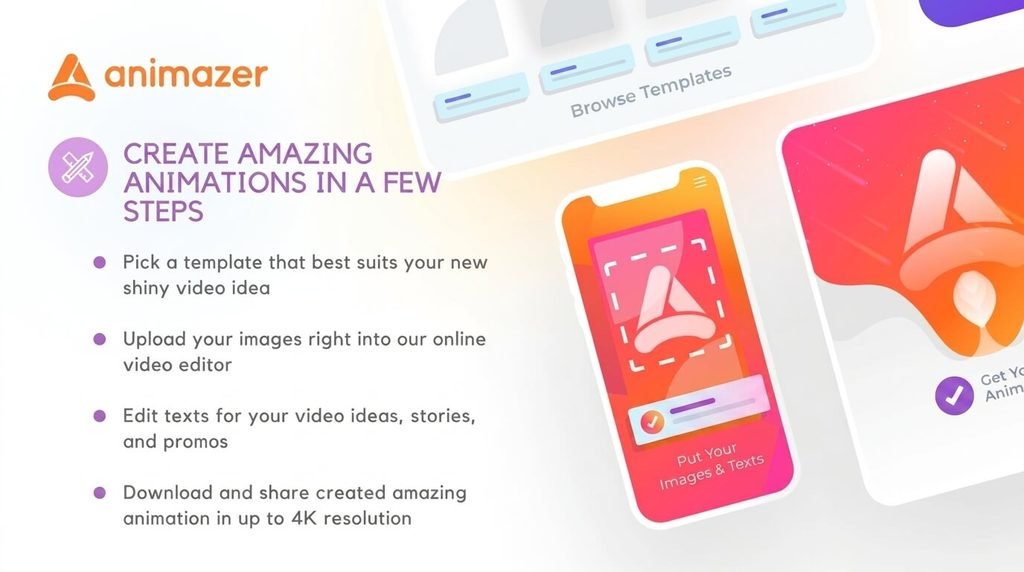
Animazer builds short animated promo videos and logo intros from a template.
You pick a design, drop in your text or image, and the platform handles the motion. This fits people who need a polished video today, not after a week of edits.
Key Features That Solve Real Problems
- Template-driven workflow. No timeline, no keyframes, no drag-and-drop editing panel to fight with.
- Animated logo intros. Upload your logo image and get a moving version back in under a minute.
- Multiple aspect ratios. Square, vertical, and horizontal formats built in.
- Soundtrack library. Skip the licensing search for background music.
How to Apply Animazer Step by Step
- Pick a template category. Logo, promo, or social ad.
- Upload your image or logo file.
- Add your text.
- Choose a soundtrack from the built-in library.
- Preview the animation.
- Export in the aspect ratio your platform needs.
Real World Use Case
A local service business wants a branded intro for every YouTube video but has no design budget.
With Animazer, the owner uploads the company logo once, picks a template, and reuses the animated intro across every new upload.
My Take on Animazer
Animazer is not built for deep editing. Font options stay limited and the timeline offers little control.
But for a fast, clean animated intro or a small promo clip, it gets the job done without forcing you to think about it.
If your search for AI video tools is really a search for a fast logo animation or a quick ad, Animazer fits the budget and the task.
Try Animazer now. Fast videos. Zero learning curve.
SoundMadeSeen: Turn Audio Into Finished Video
What SoundMadeSeen Does
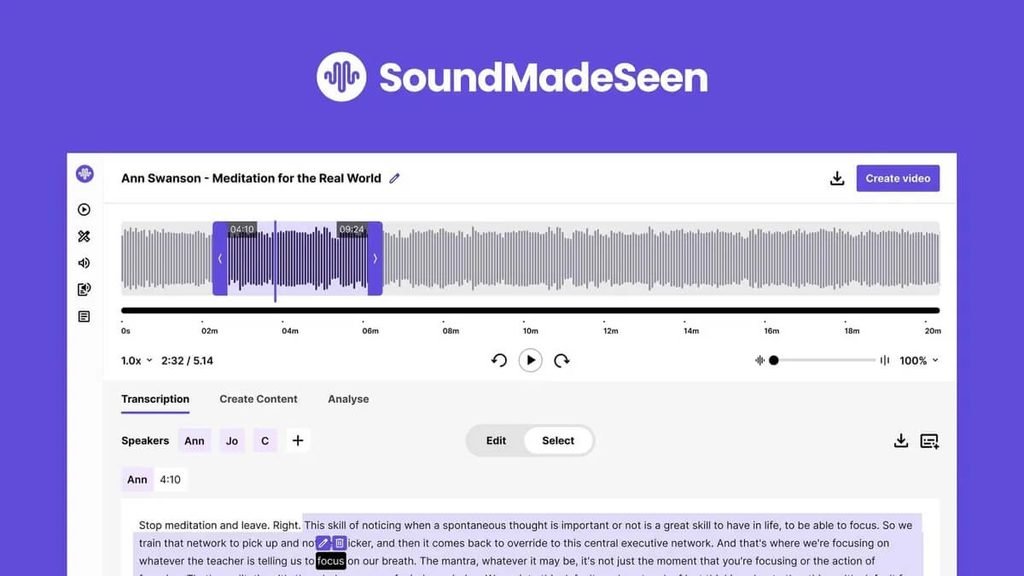
Podcasters and audio creators sit on hours of content with no video version. SoundMadeSeen fixes that gap. Upload an audio file.
The platform builds a video around it, complete with a waveform design, captions, and visuals.
Key Features That Solve Real Problems
- Audio-to-video conversion. Upload a podcast episode and get a shareable video back.
- Accurate transcription. The platform transcribes your audio and lets you edit the text before export.
- Auto captions on video. Subtitles sync directly from your transcript.
- Content repurposing. Pull show notes, blog posts, and social captions from the same audio file.
- AI voice cloning and text-to-speech. Build a voiceover without recording anything new.
How to Apply SoundMadeSeen Step by Step
- Upload your podcast or audio file.
- Review the auto-generated transcript and fix any errors.
- Pick a video design template that fits your brand.
- Turn on captions so the video works with sound off.
- Export the video.
- Pull the transcript into a blog post or show notes page.
Real World Use Case
A podcast host records a 40-minute weekly episode but has no time to cut video clips by hand.
With SoundMadeSeen, the host uploads the raw audio file and gets a captioned video plus written show notes back in one pass.
That single upload now feeds YouTube, a blog post, and a set of social captions.
My Take on SoundMadeSeen
This tool solves a specific problem well. It will not replace a full editing suite, and customization stays limited compared to FlexClip.
But if audio is your main content format and video is the missing piece, SoundMadeSeen closes that gap fast.
Several people in my group who host podcasts now use it every week to repurpose old episodes into new video content.
Try SoundMadeSeen now. Turn your next episode into video today.
Vocallab AI: Voice-Driven Video Content Made Simple
What Vocallab AI Does
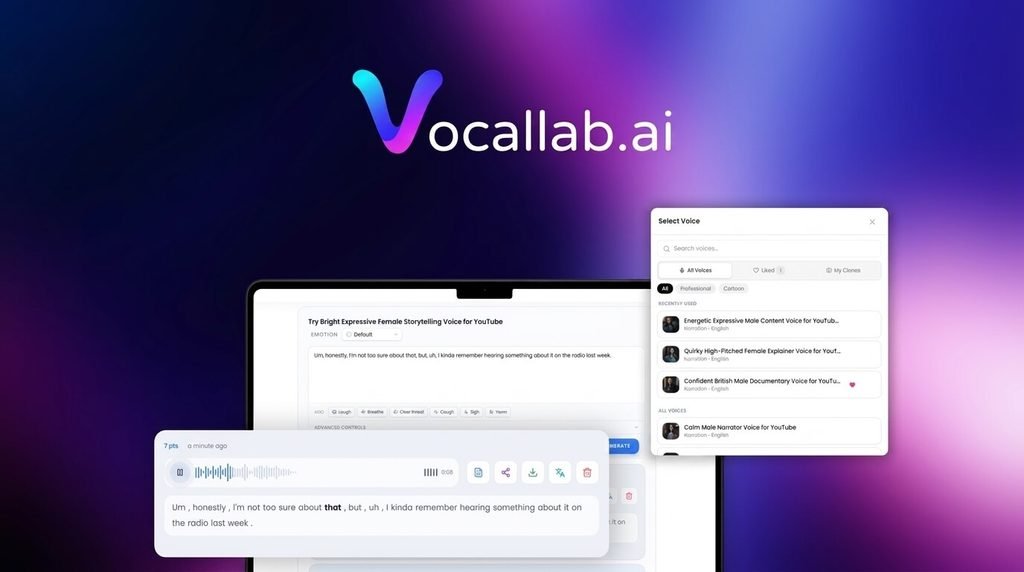
Video needs a voice, and not everyone wants to record one. Vocallab AI generates studio-quality voiceovers from text, clones an existing voice from a short sample, and exports word-level captions ready to drop into your editor.
Key Features That Solve Real Problems
- 260 AI voices. Pick by accent, age, gender, and tone.
- Voice cloning. Feed it a short sample and reuse that voice across every future project.
- Voice Design. Describe a voice in plain words and the AI builds it from scratch.
- Karaoke-style captions. Word-by-word caption highlighting exports as SRT files.
- Audiobooks workspace. Built for long-form scripts split into chapters.
How to Apply Vocallab AI Step by Step
- Paste your script into the editor.
- Pick a voice from the library or clone your own from a sample clip.
- Adjust pacing so the delivery matches your video pace.
- Generate the voiceover.
- Export the MP3 file and the matching SRT caption file.
- Drop both into your video editor of choice.
Real World Use Case
A course creator needs consistent narration across 20 training videos but does not want to record every session live.
With Vocallab AI, the creator clones their own voice once, then generates every future script through that same cloned voice. Every video sounds consistent without a single new recording session.
My Take on Vocallab AI
Multilingual quality stands out here. The core languages sound natural, not robotic. Video Dubbing recently launched and still sits in beta. So test it on a short clip before you commit to a full project.
For anyone building AI video tools or workflows around voice content, this fills the audio gap that FlexClip and Animazer do not fully cover.
Try Vocallab AI now. Clone your voice. Skip the mic forever.
What to Check Before You Pick an AI Video Tool
Picking the wrong tool wastes money and time. Check these five points before you buy.
1. Match the Tool to Your Actual Content Type
A podcaster needs audio-to-video conversion. A marketer needs template-driven promo videos. A course creator needs strong voiceover tools. Do not buy a tool built for a different workflow than yours.
2. Check Export Speed and Resolution Limits
Some platforms slow down badly on longer exports. Test a short project first before you commit to a full campaign.
3. Look for Caption and Subtitle Support
Most viewers watch video with sound off. A tool without solid auto captions costs you engagement, no matter how good the visuals look.
4. Confirm Lifetime Deal Terms Before You Buy
Lifetime deals often come with tier limits on credits, exports, or storage. Read the plan details closely so you buy the right tier for your volume.
5. Think About How AI Search Finds Your Content
Search engines now pull answers from AI models, not just page one links. Video content with clear captions, accurate transcripts, and strong structure feeds those AI answer engines better than raw, uncaptioned video.
Every tool on this list supports captions or transcripts, which helps your content surface in both traditional search and AI-generated answers.
Final Verdict
Every tool on this list solves a different piece of the video puzzle. FlexClip gives you the most complete package if you want one platform for scripts, visuals, and voice.
Animazer wins on speed for simple promo clips. SoundMadeSeen fixes the audio-to-video gap for podcasters.
Vocallab AI carries the voice side of your production when narration quality matters most.
If you only pick one tool from this list of ai video generator tools, match it to the content you already make.
Do not buy a tool built for a workflow you do not run. Start with the free trial or the lowest tier where one exists, test it on a real project, then commit to the lifetime plan once you confirm the fit.
FAQ
Can I cancel after the lifetime deal period ends?
Lifetime deals don’t renew, so there’s no subscription to cancel. Some platforms still offer paid add-ons later, like extra credits or storage.
What file formats can I export?
Most tools export MP4 for video and MP3 or SRT for audio and captions. Check each platform’s export list if you need a specific format like MOV.
Can I collaborate with a team on one account?
Some plans include seats for teammates. Others limit you to a single login. Check the tier details before you invite anyone.
Do I keep the rights to videos made with my old lifetime deal after a price change?
Yes. Content you already exported stays yours. Future access depends on the terms tied to your specific plan.
What happens if I run out of credits mid-project?
Most platforms pause exports until you buy more credits or wait for a reset. Check the credit limit on your tier before you start a big project.
Can I import a script from Google Docs or Word?
Most platforms accept copy and paste. Some also support direct file uploads like .docx or .txt. Check the editor before you start typing from scratch.
Do these tools work offline?
No. All four run through a browser and need an internet connection. Downloaded exports work offline once saved to your device.
Can I reuse a cloned voice across different projects?
Yes. Once you clone a voice, most platforms save it to your library. You can pull it into any new script without cloning again.
Is there a limit on video length?
Yes, tied to your plan tier. Short clips fit easily into lower tiers. Long-form content like audiobooks or full episodes may need a higher tier.
Can I edit a video after AI generates it?
Yes. Most platforms open the generated video in a basic editor. You can trim clips, swap text, or adjust captions before export.

Aliza Khatun is a Digital Marketing Professional and the founder of DigiGenHub. She has helped various businesses grow their online presence through real-world experience in marketing, branding, traffic growth, and business strategy.
Through DigiGenHub, she shows how to build and grow a business from the ground up using Website Setup, SEO, Branding, Paid Promotion, and smart digital tools.
She also highlights how AI can be used to its full potential to make content creation, automation, marketing, and business growth faster and smarter.
She believes that the right knowledge, modern technology, and the right tools can help any individual or business build a stronger online presence.