


Most people attempt to enhance their video appearance with filters or software. These tricks do not solve lighting issues, sensor limits, or weak laptop cameras.
You need a camera that gives clean color, fast focus and a stable feed even in a small home or office.
You also need simple tools that help you switch angles, show products and present without stress. So, you urgently need a 4K webcam for laptop.
Last month, my friend Nila, who runs a small online coaching site, called me in panic. Her students kept saying her video looked dull and shaky.
I checked her setup and saw that her old laptop’s camera was the cause of the full problem.
I told her to upgrade to a 4K webcam for laptop use with a better sensor. She made the switch that night and her sessions looked fresh and clear the next morning. Her students stayed longer and her class bookings grew again.
Select a Perfect 4k Webcam for Laptop Setups
You are losing clients because of your webcam. It sounds harsh. But a grainy, washed-out video feed unconsciously signals “unprofessional” to the person on the other side of the Zoom call.
Even the high-end laptops released this year, such as the latest MacBook Pros or Dell XPS models, still struggle with their built-in cameras. They simply cannot fit a large enough image sensor into a lid that is only 4 millimeters thick.
I have spent the last 15 years optimizing digital presence and I’ve tested nearly every major camera release since the webcam boom of 2020.
I know that specs on a box don’t always translate to real-world performance.
Below, I have broken down the absolute best 4k webcams available right now, based on actual sensor performance, software reliability and standards.
Comparison of the Top 3 Picks of 4k webcams for laptops
| Feature | Insta360 Link (Best AI) | Razer Kiyo Pro Ultra (Best Quality) | Creative Live! Cam Sync 4K (Best Value) |
| Resolution | 4K @ 30fps | 4K @ 30fps (uncompressed) | 4K @ 25fps |
| Sensor Size | 1/2″ Sensor | 1/1.2″ Sensor (Largest) | Standard CMOS |
| Main Benefit | 3-Axis Gimbal (Follows you) | True DSLR-like Bokeh | 95° Wide Angle Lens |
| Ideal For | Presenters & Teachers | Executives & Streamers | Students & Budget setups |
| Connection | USB-C | USB 3.0 (Requires bandwidth) | USB-A / USB-C |
1. Insta360 Link: The Cameraman That Follows You
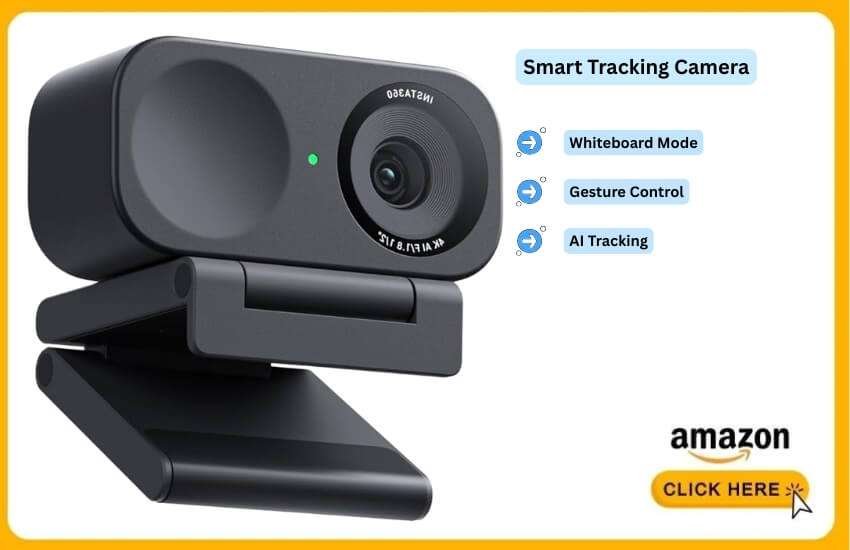
If you are the type of person who talks with your hands or likes to stand up and walk around during a presentation, the Insta360 Link is the only choice. It doesn’t just sit there; it watches you.
Best For: Presenters, Online Teachers and Dynamic Speakers.
I used this for a webinar last month, where I had to create a whiteboard strategy. Usually, I’d be stuck in a chair.
With the Link, I stood up, walked to my whiteboard and the camera head physically rotated on its 3-axis gimbal to follow me smoothly.
It felt like I had a human cameraman in the room. The “Whiteboard Mode” is also valid. It identifies the four corners of your board and automatically straightens the image for your viewers.
Pros & Cons
+ True AI Tracking: It uses a physical gimbal, not just digital cropping, so you don’t lose resolution when it zooms.
+ Gesture Control: You can hold up your palm to stop tracking or make an “L” shape to zoom in. It feels futuristic.
+ 1/2″ Sensor: Decent low-light performance, much better than any built-in laptop cam.
– Mechanical Parts: Because it moves, it’s more fragile. You can’t just toss this in a laptop bag without its case.
2. Razer Kiyo Pro Ultra: The “Is That a DSLR?” Look
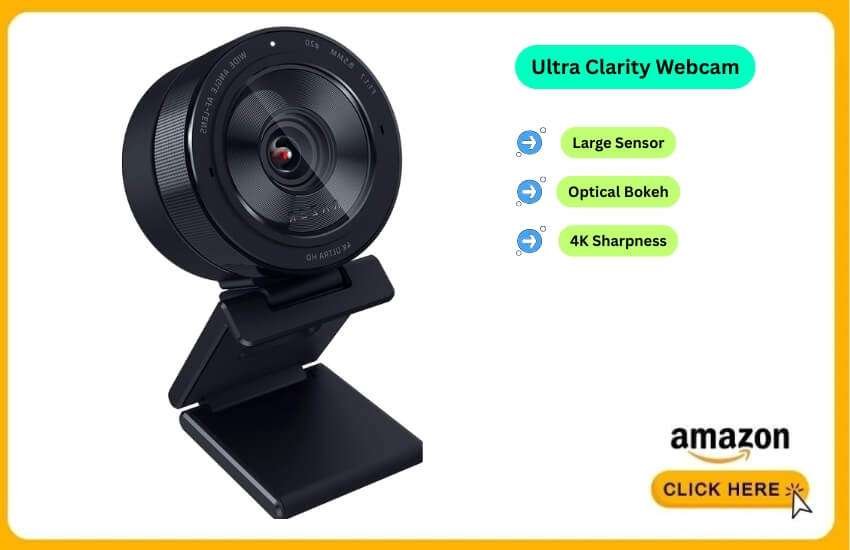
This is currently the heavyweight champion of image quality. The secret is simple: Physics. The Razer Kiyo Pro Ultra houses a massive 1/1.2″ Sony Starvis 2 sensor. In camera terms, that is huge—almost the same size as professional compact cameras.
Best For: Streamers and Executives who need the absolute best picture quality.
When I plugged this in, the first thing I noticed was the natural “bokeh” (background blur).
Most webcams fake this with software that often accidentally blurs your ears or hair. The Kiyo Pro Ultra achieves this optically due to its large aperture (f/1.7).
I tested this in my basement office with just a single desk lamp and the video remained noise-free and sharp. If you want to look like you are in a studio without buying a $2,000 camera, this is it.
Pros & Cons
+ Unmatched Dynamic Range: It handles a bright window behind you without making your face look like a silhouette.
+ Raw 4K Performance: The uncompressed video is incredibly sharp.
+ Privacy Shutter: A built-in physical shutter protects you when the camera is not in use.
– Bulky: It looks like a camera lens sitting on your monitor. It’s heavy, so it might wobble on thin laptop screens (see my mounting guide below).
– USB 3.0 Required: It needs a fast port to send all that data.
3. Logitech MX Brio: The Corporate Standard
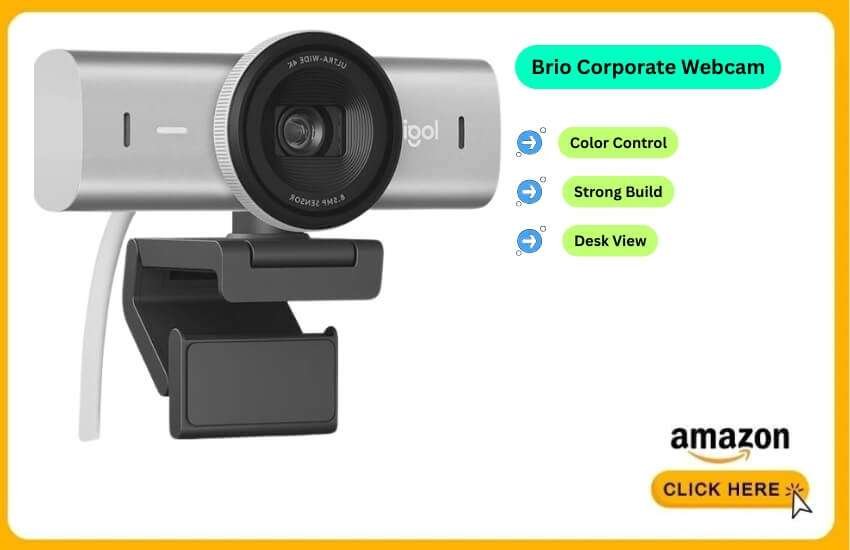
Logitech has dominated the webcam market for a decade for a reason. The MX Brio is their flagship 4k webcam for laptop users who need reliability over flashiness.
It is built like a tank and integrates perfectly with the software you already use.
Best For: Remote Professionals and Enterprise Users.
I appreciate the “Show Mode” on this camera. You can tilt the camera down to show your desk. The software automatically flips the image so the viewer sees your documents right-side up.
It’s a small detail, but for reviewing contracts or physical products with a client, it saves a lot of awkward fumbling.
The Logi Options+ software also allows you to manually adjust the color temperature. This ensures you don’t appear orange if your room lights are warm.
Pros & Cons
+ Solid Build: Premium aluminum housing that dissipates heat well.
+ Beamforming Mics: The built-in microphones are actually usable for calls if you forget your headset.
+ Wide Compatibility: Works seamlessly with Zoom, Teams and Google Meet, eliminating driver issues.
– Expensive: You pay a “brand tax” for the Logitech name.
4. Elgato Facecam Pro: The Speed Demon
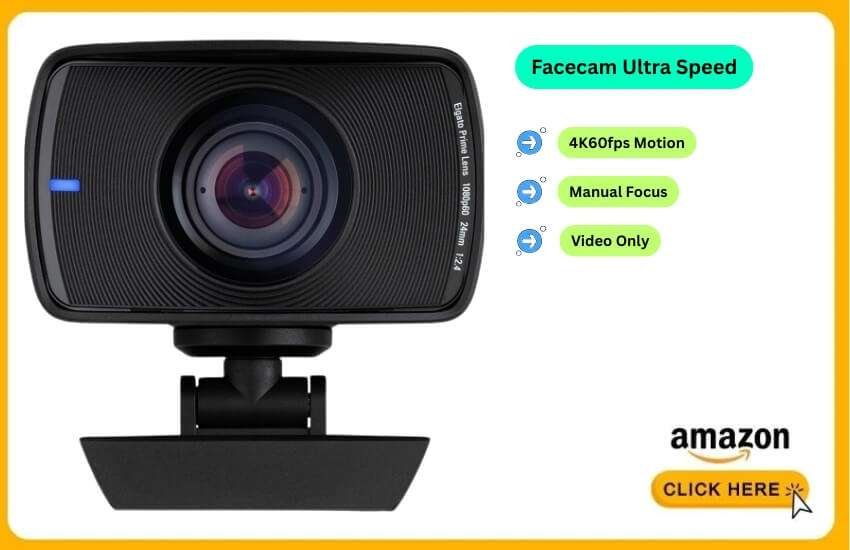
Most “4k” webcams cap out at 30 frames per second (fps). The Elgato Facecam Pro is the world’s first webcam to support 4 K at 60fps.
Best For: Twitch Streamers and YouTubers.
60fps makes a disturbing amount of difference. When I wave my hand or laugh quickly, there is zero motion blur. It looks hyper-realistic.
However, this camera is primarily designed for video use. It has no microphone.
Elgato assumes (correctly) that if you are buying this high-end camera, you already have a dedicated microphone. It focuses purely on video bandwidth.
Pros & Cons
+ 4K60fps: The smoothest video motion you can get on a webcam today.
+ Manual Focus: You can lock the focus to prevent it from “hunting when you move back and forth.
– No Microphone: You must have a separate audio source.
– Requires High Bandwidth: You need a high-quality USB-C cable and port.
5. Creative Live! Cam Sync 4K: The Budget King
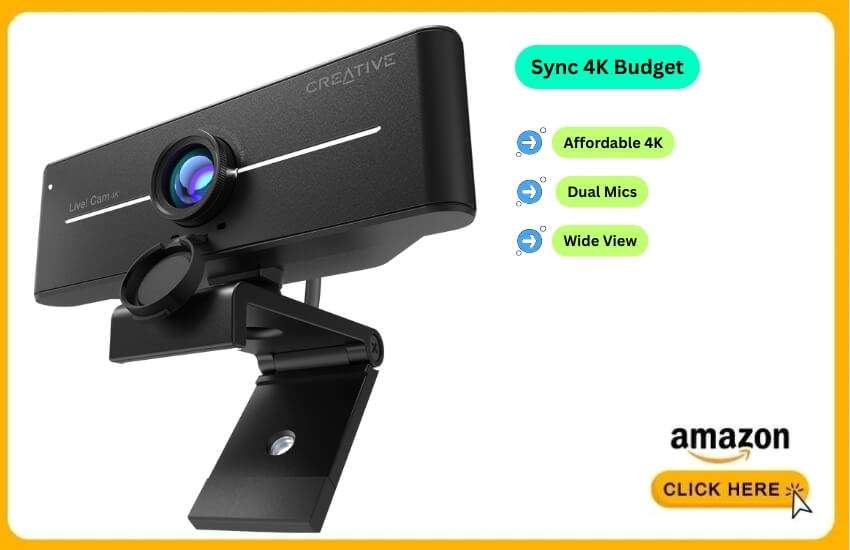
Not everyone wants to spend $300 on a webcam. If you just need to upgrade from 720p to 4K without emptying your wallet, the Creative Live! Cam Sync 4K is the smart play.
Best For: Students and Value Hunters.
I picked this up to see if a “cheap” 4k webcam for laptop use was actually worth it. The answer is yes, with caveats.
The image is significantly sharper than that of a built-in camera. This allows you to read text held up to the lens.
The field of view is wide (95°), which is great if you want to show your whole room, but might be too wide if you have a messy office.
It lacks the advanced AI capabilities of the Insta360 or the sensor size of the Razer. But for the price, it offers unbeatable value.
Pros & Cons
+ Price: The most affordable entry into 4K resolution.
+ Dual Mics: Surprisingly decent noise cancellation for audio.
+ Privacy Cap: Simple integrated lens cover.
– 25fps Limitation: At full 4K, it only shoots 25fps, which is fine for meetings but not great for fast-paced streaming.
What You Need to Know
Consider these thoughts before making a decision:
Why does my 4k webcam still look grainy?
The biggest misconception now is that “4K” equals “Perfect Quality.” It doesn’t. Grain comes from a lack of light.
A 4K sensor needs more light than a 1080p sensor because it has more pixels to fill.
The Fix
Do not rely just on the webcam. Even a cheap $20 ring light or facing a window will improve your video quality by 500% more than upgrading the camera itself.
Can my laptop handle a 4k webcam?
Most modern laptops can, but you need to check your ports. A 4K video signal requires a lot of data.
USB 3.0 is Mandatory
If you plug these cameras into an old USB 2.0 hub, they will likely downgrade to 1080p automatically to prevent lag. Always plug directly into the laptop or a powered Thunderbolt dock.
How do I mount a heavy webcam on a thin laptop screen?
Cameras like the Razer Kiyo Pro Ultra are heavy (over 0.7 lbs). If you have a thin laptop, such as a MacBook Air, a heavy webcam can cause the hinge to sag.
The Solution
Do not mount it on the lid. Use a small tabletop tripod (most of these cameras have a standard 1/4″ thread on the bottom) and place it just behind your laptop screen.
This also gives you a better angle, slightly above eye level, which is more flattering than the “up the nose” laptop angle.
Yet, if you want the absolute best picture quality possible and money is no object, buy the Razer Kiyo Pro Ultra.
It is the closest you will get to a professional camera setup via a USB connection.
If you are a professional presenter who needs to move around, the Insta360 Link will transform your workflow.
For most people who just want to look sharp on Teams or Zoom without technical headaches, the Logitech MX Brio remains the most reliable workhorse.
Conclusion
You now stand ready for the new digital season. Your on-screen appearance turns sharp, bright and true. A powerful 4 K webcam for laptop use becomes your small but mighty ally. It works like a clean shop window that invites people in.
Your calls feel smooth. Your clients stay calm. Your pitch gains shape. Your ideas shine with crisp color. You sit in your room, yet you feel like you step onto a clear stage.
Think of your new setup as a compact studio that fits in the palm of your hand. It serves you like a loyal sales representative who never tires. It turns every meeting into a neat corner office. It turns every project into a bright, open road.
FAQ
Can I use a 4 K webcam with foldable laptops expected to arrive in 2026?
Yes, most new foldable models support external cameras through USB-C.
Do 4k webcams work well in shared coworking spaces?
Yes, as long as you set the frame width and mic pickup to avoid distractions.
Can I record short vertical videos with a 4k webcam for a laptop?
Yes, most 4k webcams now support vertical mode for social platforms.
Do I need special software to color-match my webcam with my phone videos?
No, most 2026 webcam apps include quick color match presets.
Will a 4k webcam handle fast hand movements for product demos?
Yes, newer models track hand motion much better than older 1080p cameras.
Can I use the same 4k webcam for laptop and tablet setups?
Yes, as long as the tablet supports USB-C video input.
Do 4k webcams work well for night classes or late calls?
Yes, but they perform best with a small desk light near your face.
Can I use two 4 K webcams simultaneously for multi-angle shoots?
Yes, most laptops support dual-camera setups, provided the ports allow it.