
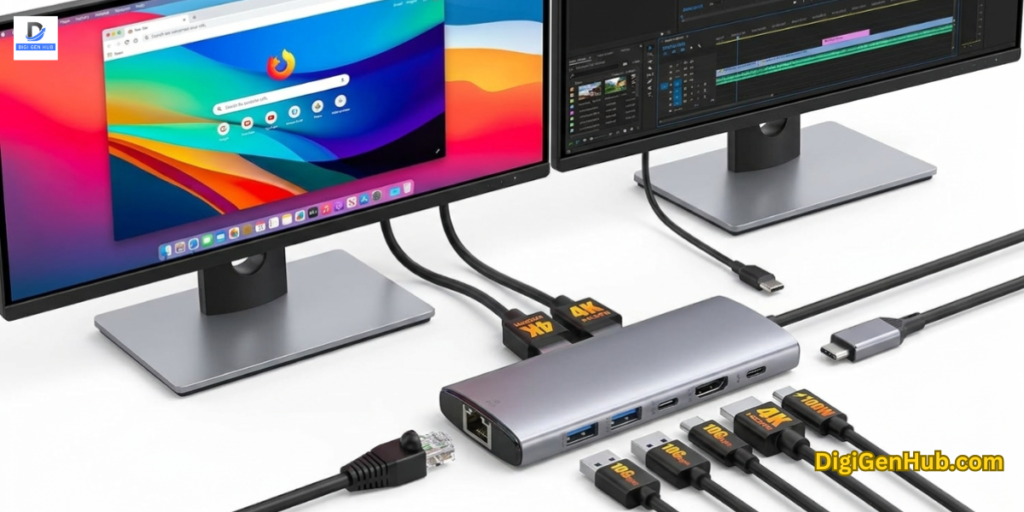
Once optional, a USB C hub is now essential for getting work done. Do you need dual 4K monitors for editing?
It connects them. Want stable Ethernet for clear Zoom calls? It handles that too. Even transferring photos becomes instant. The right hub makes it all happen effortlessly.
I still remember the panic I felt in 2024 when I arrived at a client presentation in Chicago.
I had my new MacBook, my presentation on a USB stick and… absolutely no way to connect them.
That was the day I learned: modern laptops are powerful, but they have a serious “dongle problem.”
If you are running an online business or just trying to get work done, you cannot rely on just two Thunderbolt ports.
What is a USB C Hub?
Think of a USB C Hub as a “traffic controller” for your laptop.
Modern laptops (like the MacBook Air, Dell XPS, or HP Spectre) often come with only two ports to keep them thin.
A USB C hub plugs into one of those ports and splits it into many different connections. It allows you to plug in a mouse, keyboard, monitor, internet cable and SD card all at once, while still charging your laptop through that single connection.
It bridges the gap between your new computer and your old accessories.
High-Speed Ethernet USB C Hub
If you are in a rush, you can see this chart. I have selected these based on reliability, heat management and the variety of ports.
| Product Name | Best For | Ports | Video Output | Charging (PD) |
| LIONWEI 13-in-1 Dock | Power Users (Home Office) | 13 Ports | Dual 4K HDMI + DP | 100W |
| 14-in-1 Docking Station | Maximum Connectivity | 14 Ports | Dual 4K HDMI + DP | 100W |
| BENFEI 5-in-1 Hub | Travel & Coffee Shops | 5 Ports | 4K HDMI | 100W |
| Generic 7-in-1 Adapter | Photographers | 7 Ports | 4K HDMI + SD/TF | 100W |
| BERLAT Aluminum 7-in-1 | Students / Budget | 7 Ports | USB 3.0 + 2.0 | N/A |
| Belkin Connect 4-Port | Future-Proofing (All USB-C) | 4 USB-C | N/A | 100W |
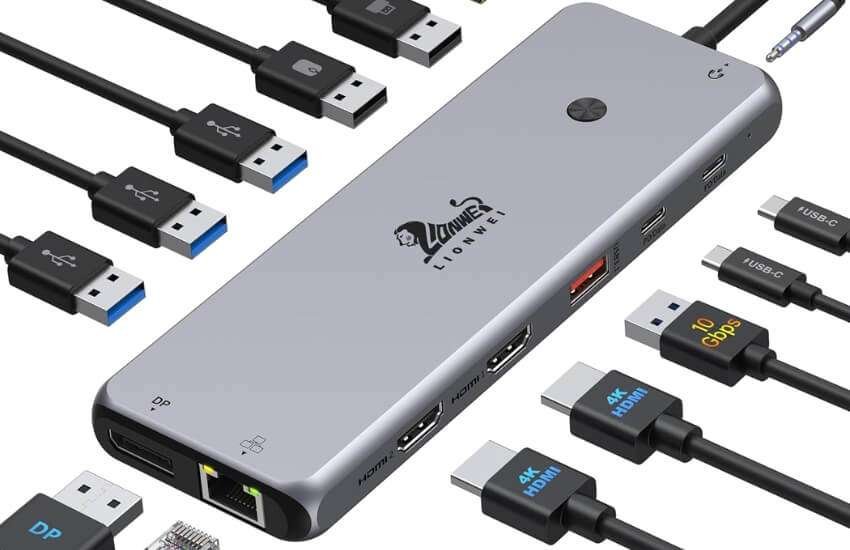
1. LIONWEI 13-in-1 USB C Docking Station
Best For: The “Desktop Replacement” Setup
When I sit down at my main desk, I don’t want to plug in five different cables. The LIONWEI 13-in-1 is designed for this exact scenario.
It essentially turns your laptop into a full desktop tower. It features a massive array of 8 USB ports (a mix of USB-C and USB-A), which is rare.
Most hubs offer only 3 USB ports. This one provides enough ports for a keyboard, mouse, webcam, microphone and two hard drives.
I tested this with a dual-monitor setup (Dell and HP screens). The standout feature is the “Triple Display” support. On Windows. I could extend my desktop to three different screens.
Note for Mac users: macOS doesn’t support “MST” (Multi-Stream Transport) the same way.
So you can only extend to one external screen or mirror the same image to two. This is an Apple limitation, not the hub’s fault, but it is vital to know.
Pros:
Massive Port Selection: You will likely never run out of USB slots.
Triple Display: Supports two HDMIs and one DisplayPort simultaneously.
Stable Ethernet: The Gigabit Ethernet port is a lifesaver for large file uploads.
Cons:
Size: It is bulky. This is not something you want to throw in your pocket.
Power Drain: It consumes approximately 13-15W of power. So use a strong charger (100W recommended).
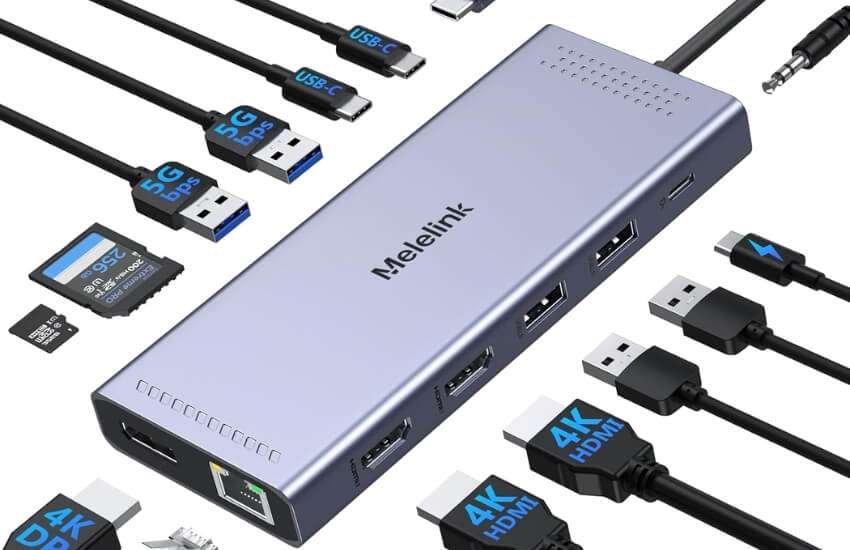
2. 14-in-1 USB C Laptop Docking Station (Dual Monitor Edition)
Best For: Windows users who need maximum screen real estate.
This is the heavy hitter for productivity. If your daily work involves spreadsheets, coding, or stock trading, you need pixels.
This 14-in-1 station places a strong emphasis on video output. It supports 4K resolution, but the real magic is running dual monitors at 60Hz (depending on your laptop’s capabilities).
I set this up for a video editing station. We had a 4K monitor connected to HDMI 1 and a vertical 1080p monitor connected to HDMI 2 for reading scripts.
The connection was instant. It also features SD and MicroSD slots that work simultaneously.
A small detail. But a huge benefit for creators who don’t want to constantly swap cards.
Pros:
Dual 4K Support: Enjoy crisp video output on modern monitors.
Audio Jack: Includes a 3.5mm jack, which is becoming increasingly rare on many new laptops.
Heat Dissipation: The larger body helps dissipate heat more effectively than smaller dongles.
Cons:
Short Cable: The attached cable to the laptop is often too short if you use a laptop stand.
Driver Setup: Occasionally requires a restart on older Windows laptops to recognize the Ethernet.
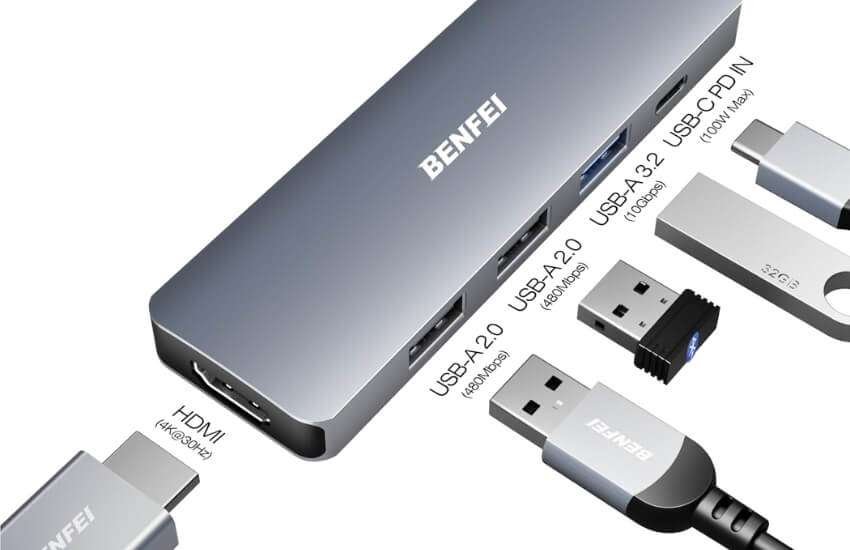
3. BENFEI 5-in-1 USB C Hub
Best For: Digital Nomads and Travelers.
Sometimes you don’t need a command center; you just need to connect a projector and a mouse.
The BENFEI 5-in-1 is built for durability. It uses a braided nylon cable and a solid aluminium “unibody” shell.
I’ve thrown this in my backpack hundreds of times without a case and it still works perfectly.
I use this specific hub for my “cafe kit.” It has exactly what I need: one HDMI for presentations, a few USB-A ports for a wireless mouse and pass-through charging.
It’s small enough to hang off the side of my laptop without dragging it down. The 4K HDMI is reliable, although it typically caps at 30Hz. It is sufficient for movies and office work, but not for high-speed gaming.
Pros:
Extremely Durable: Built to take a beating in your bag.
Compact: Easily fits in a pocket.
Plug & Play: Never had a driver issue with this unit.
Cons:
Limited Ports: No SD card reader.
30Hz Video: Not ideal for fast-paced gaming monitors.
4. 7-in-1 Multiport Adapter (Generic/Standard)
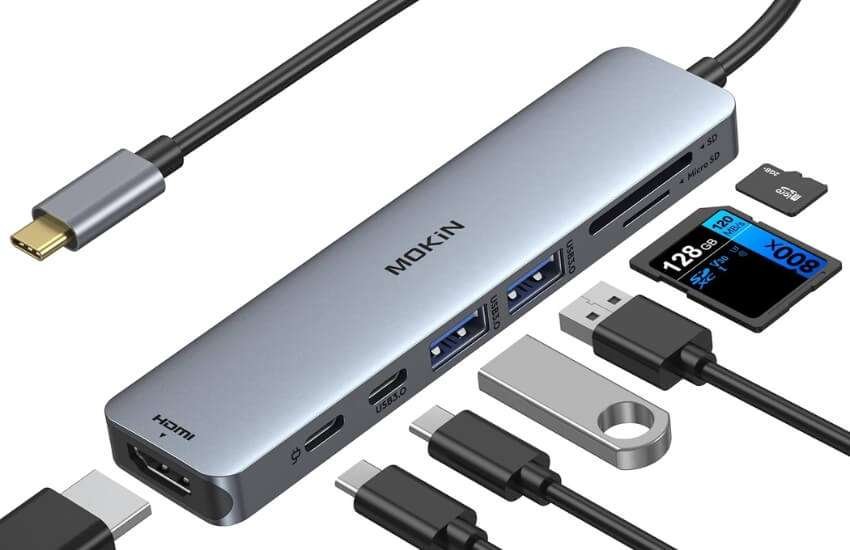
Best For: Photographers and Creators.
This takes the 5-in-1 concept and adds two essential features that every photographer misses: SD and MicroSD card slots.
Many “thin and light” laptops have dropped these slots entirely. This hub brings them back.
After shooting product photos, I use this hub to transfer files to my iPad Pro. It supports “On-The-Go” (OTG). This means I can plug it into my tablet and it reads the camera card immediately.
It also supports 100W Power Delivery. So I can charge my iPad while transferring terabytes of data.
Pros:
Card Readers: Fast read/write speeds for SD cards.
Balanced: Good mix of video, data and power ports.
Value: Usually very affordable for the features provided.
Cons:
Heat: These smaller 7-in-1 hubs can get warm to the touch during heavy transfers.
USB 3.0 Only: Typically lacks the newer Gen 2 (10 Gbps) speeds.
5. BERLAT Aluminum 7-in-1 Hub
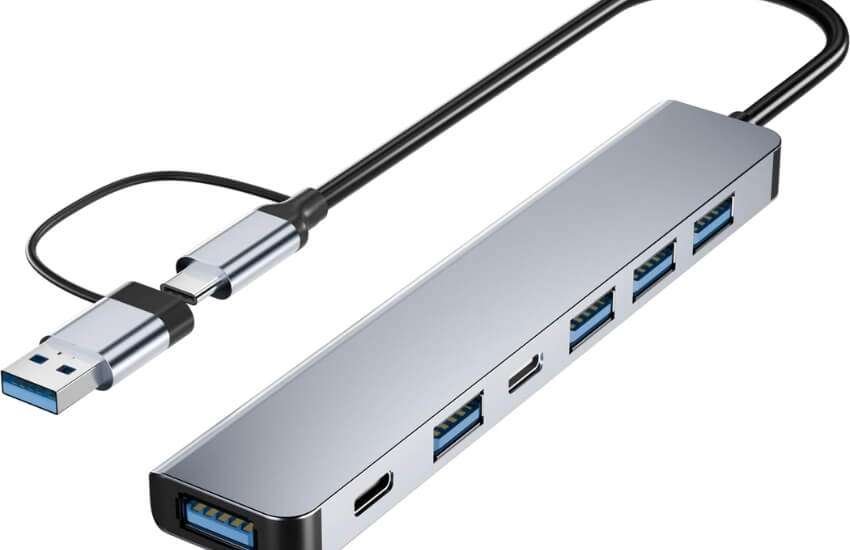
Best For: Students and Budget Buyers.
If you are on a strict budget and just need to connect a mouse, keyboard and maybe a printer, the BERLAT is a solid choice.
It mixes USB 3.0 (fast) ports with USB 2.0 (slow) ports.
This is actually a smart design choice to keep costs down, as your mouse and keyboard do not require high speeds.
I bought a few of these for our interns. They work great for basic office tasks.
The build quality is surprisingly good (aluminum alloy) for the price. It doesn’t have the high-end video specs of the LIONWEI. But for writing papers and basic web browsing, it is perfect.
Pros:
Price: Very friendly on the wallet.
Design: Slim and matches the “Space Grey” look of Apple devices.
Legacy Support: Great for connecting older USB accessories.
Cons:
Slower Ports: Pay attention to which port you plug your hard drive into (blue is fast, black is slow).
No PD Charging: Some models in this tier do not support pass-through charging.
6. Belkin Connect 4-Port USB C Hub
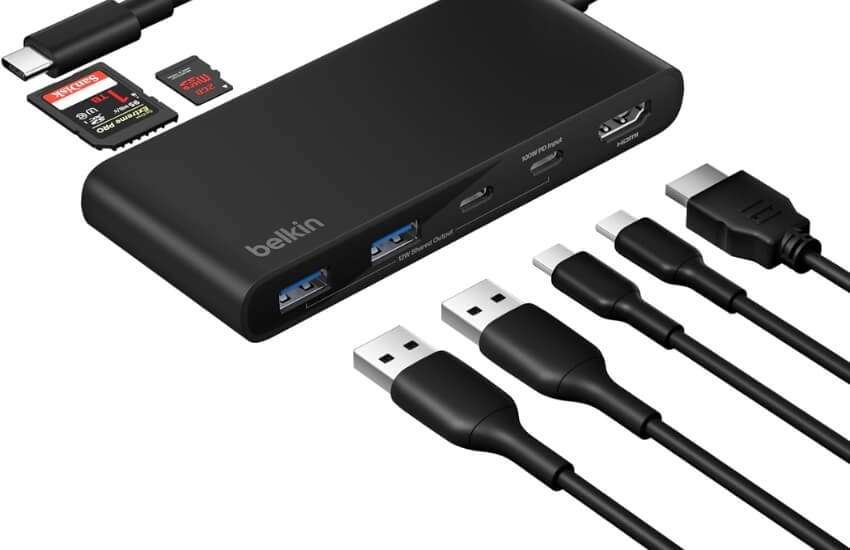
Best For: The Future-Proof Setup (All USB-C).
This is a unique entry. Most hubs add old ports (USB-A) to your computer. Belkin assumes you have moved on.
This hub turns one USB-C port into four USB-C ports. This is critical for 2026 trends because most new accessories (webcams, portable SSDs, microphones) now come with USB-C cables.
I use this with my Mac mini. I have a USB-C webcam, a USB-C external drive and a USB-C microphone.
I ran out of ports on the computer and a standard hub wouldn’t help me because they only offer rectangular USB-A ports.
The Belkin Connect solved this perfectly. It also supports 10Gbps transfer speeds (Gen 2), making it twice as fast as most other hubs on this list.
Pros:
Speed: True 10Gbps transfer rates for fast SSDs.
Future Ready: Ready for the wave of USB-C exclusive gadgets.
High Power: Supports up to 100W pass-through.
Cons:
No Video: This is for data and power only; you cannot plug a monitor into these ports.
Price: More expensive than standard hubs due to the advanced chipsets.
Why Do You Actually Need One? (Specific Use Cases)
A hub isn’t just about adding more holes. It solves specific problems for different types of users. Here is exactly how it helps based on your needs:
1. For Remote Workers: Uninterruptible Internet
The Problem: Wi-Fi is great, but it often lags during Zoom calls or disconnects when you move rooms.
The Solution: A hub with an Ethernet (RJ45) port lets you plug a hardwired internet cable directly into your laptop.
This guarantees a stable, high-speed connection that Wi-Fi cannot match. If you work from home, this prevents those awkward “frozen screen” moments.
2. For Video Editors & Designers: 4K Precision
The Problem: Editing videos or designing graphics on a small 13-inch laptop screen is a frustrating experience.
The Solution: A hub with an HDMI 4K @ 60Hz port lets you connect a large external monitor. The “60Hz” part is critical—it means the mouse moves smoothly across the screen without the choppy lag found in cheaper 30Hz hubs.
3. For Photographers: Instant Transfer
The Problem: Most new laptops have removed the SD card slot completely.
The Solution: Instead of carrying a separate card reader, a hub includes SD and MicroSD slots. You can pop your camera card directly into the hub and transfer 500 photos in seconds while your laptop charges.
4. For Desk Setups: The “One-Cable” Life
The Problem: Every time you leave your desk, you have to unplug the power cord, monitor, mouse and keyboard individually.
The Solution: With a hub, everything is connected directly to the hub itself. When you sit down, you plug in just one cable to your laptop.
Your screen turns on, your mouse wakes up and your battery starts charging instantly. This is what we call “Pass-Through Charging” (Power Delivery).
Technical Note: Bandwidth Sharing
It is essential to note that a hub shares its speed. If you plug a 4K monitor, a hard drive and a webcam into one hub, they all share the speed of that single USB-C port on your laptop.
Budget Hubs (5Gbps): Ideal for mice, keyboards and basic screens.
Premium Hubs (10Gbps+): Needed if you transfer huge files while running a 4K monitor simultaneously.
How Do You Avoid Common Mistakes
Buying a hub can be confusing because they all appear to be the same. Let’s learn what things you should know:
1. Power Delivery (PD) is Non-Negotiable
Most modern laptops charge via USB-C. If you buy a hub without “Pass-Through Charging” (PD), you must choose between charging your laptop and using your mouse.
Always look for “100W PD” or a similar specification. The hub itself requires approximately 15W to operate.
A 100W hub will deliver approximately 85W to your laptop, which is more than enough for fast charging.
2. The “4K” Trap (30Hz vs. 60Hz)
You will see “4K HDMI” on almost every box. But look at the fine print.
4K @ 30Hz: The mouse cursor will feel “laggy” or slow. Fine for movies, bad for work.
4K @ 60Hz: Enjoy smooth motion, just like on your laptop screen.
If you work 8 hours a day on an external monitor, get a hub that supports 60Hz. Your eyes will thank you.
3. Heat Management
People often freak out when their hub gets hot. This is actually normal. The aluminum casing is designed to pull heat away from the internal chips.
If the case is cold, the heat might be trapped inside, which is worse. However, if it’s too hot to touch, that is a defect. Brands like LIONWEI and BENFEI have good thermal designs.
Which One Should You Buy?
For the Home Office Power User: Get the LIONWEI 13-in-1. It replaces a bulky desktop tower and gives you the triple-monitor setup you need for serious productivity.
For the Traveler: The BENFEI 5-in-1 is unbeatable. It is tough, simple and does exactly what it says without failing.
For the Modern Techie: Have you made the switch to USB-C completely? Then the Belkin Connect is your best choice. It maintains a fast connection at 10Gbps. You won’t be forced to use old, outdated ports.
Yet, product specifications can change. Always check the latest compatibility information on the product page before making a purchase.
Conclusion
Finding the right hub changes your entire daily experience. You finally get the freedom to connect everything at once without stress. No more swapping cables or worrying about dead batteries mid-task. Your workspace becomes cleaner, faster and ready for anything. Enjoy the simplicity of a setup that just works perfectly every time.
FAQ
Can I plug a USB-C hub into another hub?
Technically yes, but avoid it. Daisy-chaining hubs causes power drops. The second hub may not get enough energy.
This often causes hard drives to disconnect or files to become corrupt. Use one big hub instead.
Why does my wireless mouse lag when plugged in?
It is signal interference. Fast USB 3.0 ports emit radio noise. This noise blocks the signal to your mouse dongle. Use a short extension cord for the dongle. Moving it away from the hub fixes the lag.
Will a standard hub charge my Steam Deck or ROG Ally?
Only if it has high power. Gaming handhelds need 45W or more. Standard hubs will drain your battery while playing. You must buy a hub rated for 65W PD or higher.
Can I use a longer cable for my hub?
Most cables will fail. You cannot use a standard charging cable. It will kill the video signal. You need an “Active” USB-C extension cable. It must be rated for 10Gbps to work properly.
What is the difference between a Hub and a Thunderbolt Dock?
It is about speed consistency. A USB-C hub allows devices to share speed. A Thunderbolt dock ensures full speed for all devices. Thunderbolt is better for heavy video editing. Hubs are better for general use.
Does the hub drain battery if nothing is connected?
Yes. The hub’s internal chips are always on. They draw about 5W to 15W of power constantly. Unplug the hub when you are not using it to save your laptop battery.
Can I play games at 144Hz through a hub?
Yes, but choose the right port. Standard HDMI ports often limit you to 60Hz refresh rates. For 144Hz gaming, use a hub with a DisplayPort. Always check the refresh rate specifications before making a purchase.
Do I need to update my hub?
Sometimes. Premium brands like Belkin or Anker release updates. These fix bugs, such as sleeping Ethernet ports. Check the manufacturer’s website if your hub is acting strangely.
Does this work for Samsung DeX?
Yes. Any hub with an HDMI port triggers Samsung DeX. You do not need a special dock. Just connect your phone and a monitor. Also, make sure to plug in a charger.
Is it safe to charge with a cheap hub?
It can be risky. Cheap hubs often lack voltage protection. A power surge from the wall could pass through to your laptop.
Use trusted brands for charging expensive devices. Use cheap hubs for data only.
Will these hubs work with the iPhone 15/16 and newer iPads?
Yes. Since Apple switched to USB-C for the iPhone 15 series and all modern iPads, these hubs work perfectly.
You can use them to connect your phone to a TV (via HDMI) or read SD cards directly into the Files app.
Do I need to install drivers?
Generally, no. USB C hubs are “Plug and Play” for macOS, Windows 10/11 and ChromeOS. However, for the Ethernet port to work on some older versions of Windows, you might need a simple one-time driver update.
Can I use two monitors with a MacBook Air?
This is tricky. The base model MacBook Air (M1/M2/M3) chips only support one external display natively. Even if you buy the 14-in-1 dock, both external screens will show the exact same image (mirroring). You need a specialized “DisplayLink” dock (which is much more expensive) to bypass this limit on base Macs.
Why is my data transfer slow?
A: Check the color of the port inside.
Blue Port: USB 3.0 (Fast – 5Gbps). Use this for hard drives.
Black Port: USB 2.0 (Slow – 480Mbps). Use this for mouse and keyboard only.

Aliza Khatun is a Digital Marketing Professional and the founder of DigiGenHub. She has helped various businesses grow their online presence through real-world experience in marketing, branding, traffic growth, and business strategy.
Through DigiGenHub, she shows how to build and grow a business from the ground up using Website Setup, SEO, Branding, Paid Promotion, and smart digital tools.
She also highlights how AI can be used to its full potential to make content creation, automation, marketing, and business growth faster and smarter.
She believes that the right knowledge, modern technology, and the right tools can help any individual or business build a stronger online presence.