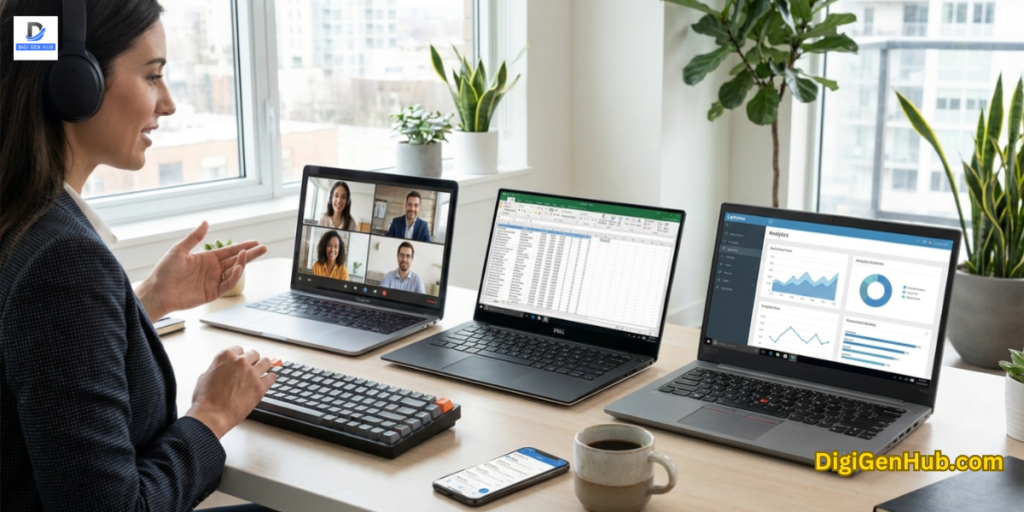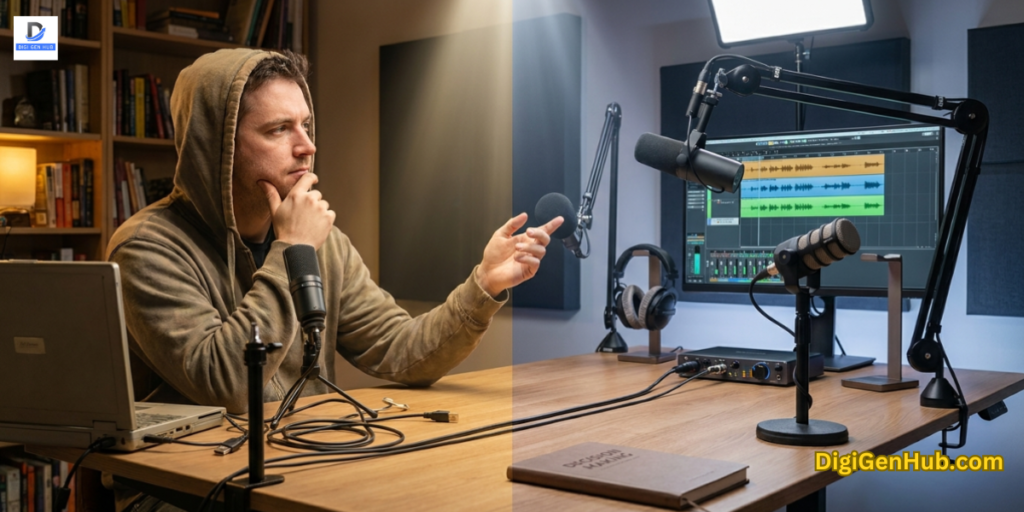

A drawing tablet is no longer just a niche tool for digital artists. It has evolved into a critical productivity engine for modern businesses.
I have seen a massive shift this year. Real estate agents use them for on-site contract signings.
Online teachers use them to write complex ideas on a whiteboard during Zoom meetings.
Marketing teams use them to edit visuals instantly during strategy meetings.
If you still rely solely on a mouse, you are limiting your productivity and efficiency.
A mouse is clumsy for detailed work. A stylus offers the precision of a scalpel.
Whether you need to sign PDFs, retouch product photos for your store, or take handwritten digital notes that sync to the cloud, the right tablet transforms your workflow.
What is The Best Drawing Tablet for Business?
Choose a screen display for intuitive visual work or a screenless pad for ergonomic, budget-friendly durability.
Ensure the stylus supports 8,192+ pressure levels to capture the natural nuance of your handwriting.
Verify that the size fits your desk and that it connects seamlessly with your specific operating system.
Finally, decide if you need a standalone device for travel or a PC-tethered model for a stable office workflow.
Dependable Drawing Tablets for Business
| Product Name | Best For | Screen Type | Pressure Levels | Rating |
| 1. Wacom Intuos Pro (Med) | Overall Best (Industry Standard) | Screenless (Pad) | 8,192 | 9.8/10 |
| 2. Huion Kamvas Pro 16 V2 | Best Value Display (Visual Work) | 15.6″ IPS Screen | 16,384 (16K) | 9.5/10 |
| 3. TCL NXTPAPER 11 Gen 2 | Best for Reading & Notes | 11″ Paper-like (Android) | 4,096 | 9.3/10 |
| 4. Huion Kamvas 13 Gen 3 | Best Compact (Travel Ready) | 13.3″ FHD Screen | 16,384 (16K) | 9.2/10 |
| 5. UGEE M708 V2 | Best Budget (Admin/Entry) | Screenless (Pad) | 8,192 | 8.5/10 |
1. Wacom Intuos Pro (Medium)
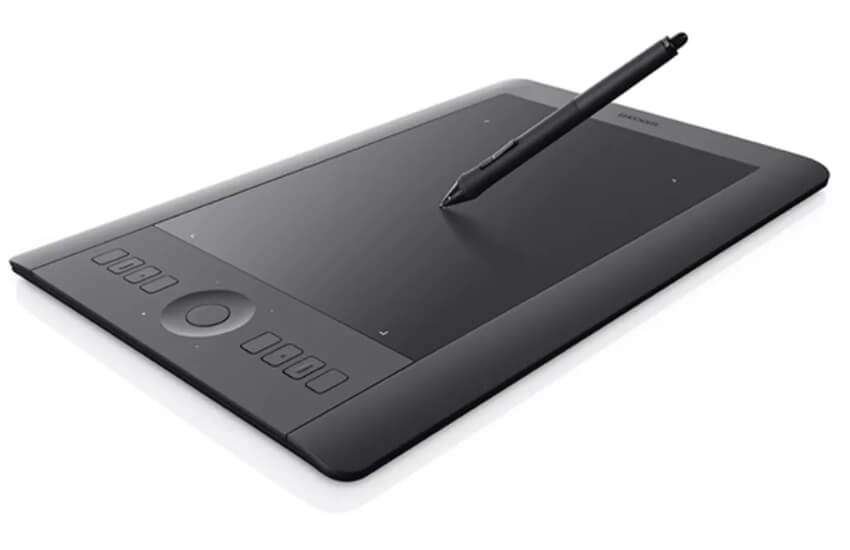
The Industry Standard for Professional Reliability.
If you walk into any top design firm in New York, you will see this device. The Wacom Intuos Pro is the benchmark for reliability.
I always recommend the “Pro” line to businesses that require equipment to perform flawlessly every day.
It is a screenless slate. You look at your monitor while your hand moves on the pad. This helps your posture. You stay looking up, not hunched over.
Why It Works for Business:
Precision: The Pro Pen 2 has virtually no lag. Your digital signature looks exactly like wet ink.
Touch Ring: Map this ring to zoom or scroll. You can fly through long PDF contracts without touching a keyboard.
Wireless: Connects via Bluetooth. It keeps your conference room table clean.
Pros:
Built to last for years.
Multi-touch surface supports gestures like a trackpad.
Drivers are extremely stable on Windows and Mac.
Cons:
Higher upfront cost.
Texture wears down pen nibs over time.
I set this up for a video editor with wrist pain. Switching to the pen immediately relieved the strain. The hand position is more natural than gripping a mouse.
2. Huion Kamvas Pro 16 V2
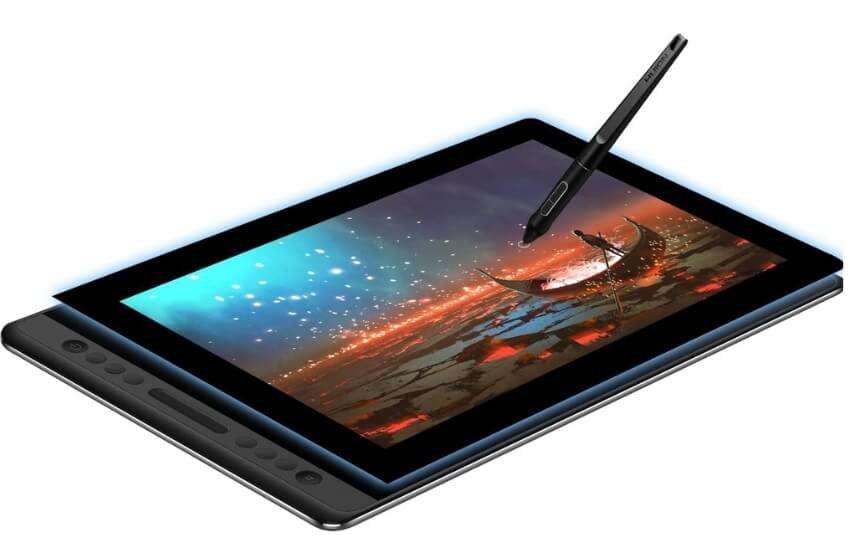
The “Visual Powerhouse” for Marketing Teams.
If you show clients visual concepts, you need a screen. The Huion Kamvas Pro 16 V2 is my top pick for 2025. It brings “16K Pressure Sensitivity” to a price point that makes sense for small businesses.
This is a “Pen Display.” It acts as a second monitor you can draw on. The glass has an etched finish. It reduces glare from office lights. It feels like writing on paper, not sliding on glass.
Why It Works for Business:
16K Pressure Levels: This is the new standard. It allows subtle control. You can easily make tiny lighting adjustments to product photos.
Aluminum Build: The sleek alloy back dissipates heat. It looks professional in meetings.
Cable Management: Uses a single 3-in-1 cable. No wire clutter on your desk.
Pros:
Excellent color accuracy (120% sRGB).
PenTech 4.0 eliminates cursor wobble.
Anti-glare glass prevents eye fatigue.
Cons:
Needs a computer connection.
Screen brightness is average for outdoor use.
Our content team uses this for thumbnails. Drawing arrows and highlights directly on the image increased our speed by 40%.
3. TCL NXTPAPER 11 Gen 2
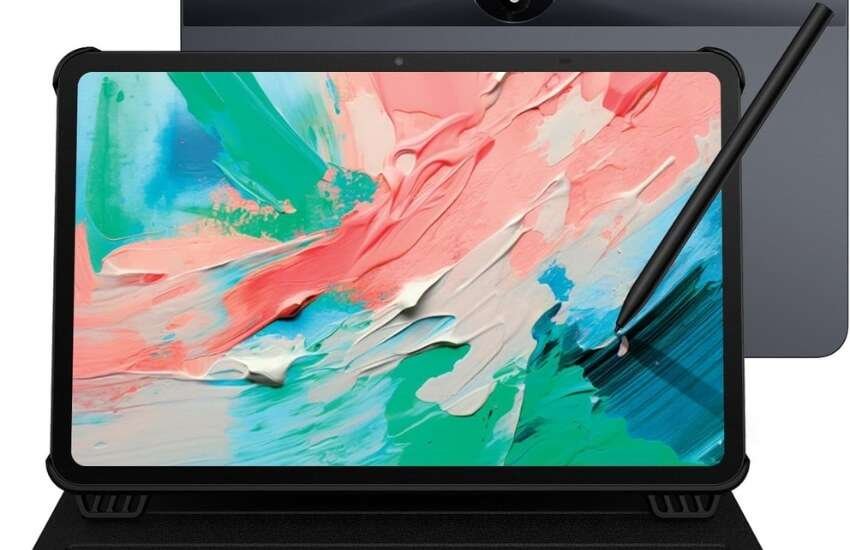
The Ultimate “Paper-Replacement” for Executives.
Most tablets look like shiny TVs. The TCL NXTPAPER 11 Gen 2 appears to be made of paper. The matte display diffuses light. It is the best device for reading reports without eye strain.
It runs Android 15. It is a standalone computer. You do not need a laptop. You can handle emails and review PDFs from a coffee shop.
Why It Works for Business:
Eye Care: NXTPAPER 4.0 tech cuts blue light. Your eyes will not get tired after long sessions.
Battery Life: The 8000mAh battery lasts a full workday.
AI Tools: Integrated AI summarizes handwritten notes into text.
Pros:
The matte screen offers a unique writing experience.
Very lightweight (500g).
Functions independently without a PC.
Cons:
Not built for heavy video editing.
A stylus is less precise than a Wacom for fine art.
Real-World Use Case: A lawyer I know uses this to review contracts. She prefers the paper-like screen because it does not reflect courtroom lights.
4. Huion Kamvas 13 Gen 3
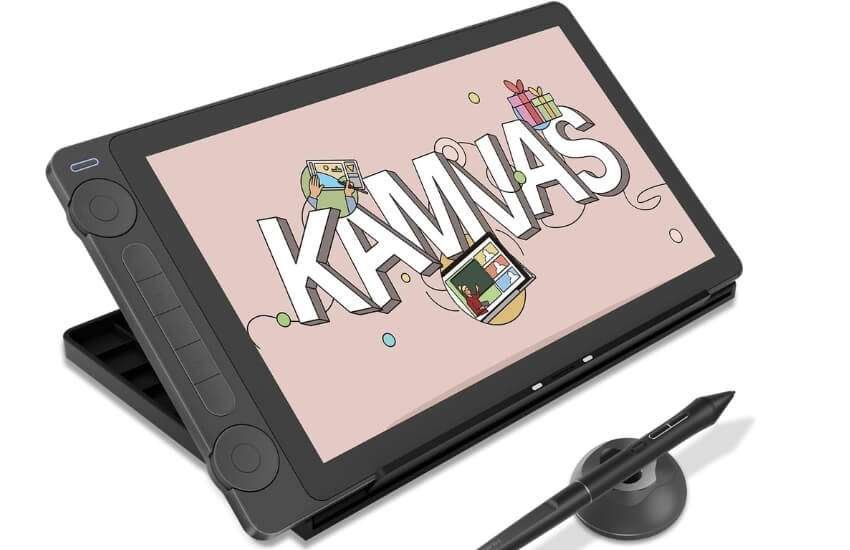
The Portable Professional for Hybrid Workers.
Hybrid work is the norm. You need a device that fits in a bag. The Huion Kamvas 13 Gen 3 is perfect for this.
It is small (13.3 inches) and powers directly from your laptop. It features dual dial controllers. You can scroll with one and zoom with the other.
Why It Works for Business:
Dual Dials: These are productivity hacks. Navigate spreadsheets with one hand while holding the pen.
Single Cable: Connects via one USB-C cable. Sets up in 10 seconds.
Canvas Glass 2.0: Resists fingerprints and oils.
Pros:
Affordable for a display tablet.
Highly portable.
Programmable keys speed up data entry.
Cons:
Screen space is tight for complex dashboards.
The stand is often sold separately.
Online tutors love this. The size is perfect for sitting next to a laptop during Zoom calls to solve math problems live.
5. UGEE M708 V2
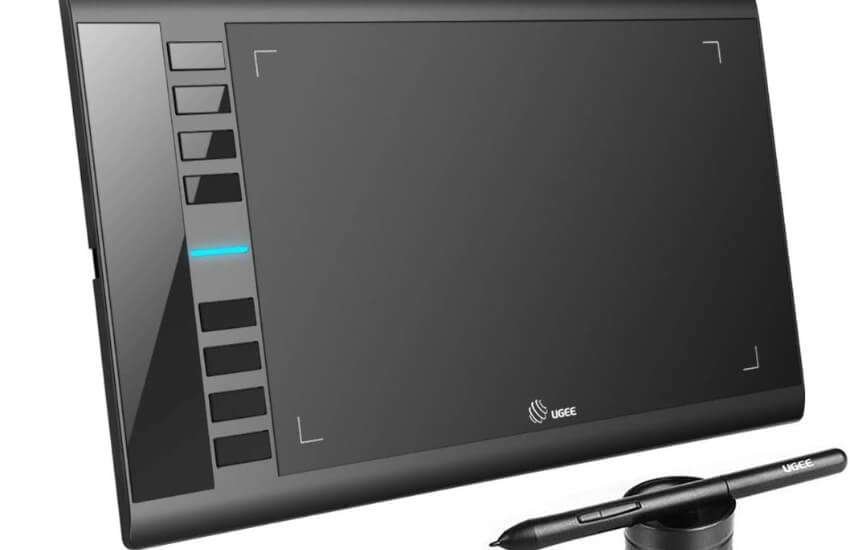
The Budget Workhorse for Admin & HR.
Do not underestimate the UGEE M708 V2. It is inexpensive but powerful. It has a large 10×6-inch area and 8 shortcut keys.
It is the perfect replacement for mice in administrative tasks. The V2 update adds a battery-free pen.
Why It Works for Business:
8 Hot Keys: Program these to “Copy,” “Paste,” or “Enter.” It speeds up data entry significantly.
Large Surface: Plenty of room to move your arm. Reduces wrist strain.
Compatibility: Works with Windows, Mac and Chrome OS.
Pros:
Very affordable.
No pen charging required.
Durable surface.
Cons:
Plastic build feels basic.
Requires hand-eye coordination practice.
I deployed these for a data entry team. They mapped the buttons to common Excel shortcuts. Their processing speed increased noticeably.
Why Do Professionals Prefer a Drawing Tablet Over a Mouse?
If you ask 100% of daily users, they will tell you the same thing: The mouse is for browsing, but the tablet is for creating.
You don’t realize how much the mouse was slowing you down until you experience the speed of Absolute Positioning.
Let’s see the 5 undeniable benefits that every single professional—from artists to executives—agrees on.
1. Absolute Positioning (The “Teleport” Effect)
This is the technical advantage that 100% of new users notice immediately.
The Mouse Problem: A mouse uses “Relative Positioning.” You have to drag it, lift it and drag it again to get the cursor across a large screen. It is slow.
The Tablet Solution: A tablet uses “Absolute Positioning.” The top-right corner of the tablet is always the top-right corner of your screen. If you put your pen there, the cursor “teleports” instantly.
My Opinion: Once your muscle memory learns this 1:1 map, you can navigate dual monitors 3x faster than with a mouse. It feels like magic.
2. Pressure Sensitivity (The “Scalpel” vs. The “Rock”)
A mouse is binary: it is either clicking (1) or not clicking (0). A modern tablet is dynamic.
The Fact: New 2025 tablets (like Huion Gen 3) have 16,384 levels of pressure. The harder you press, the thicker the line or the darker the brush stroke.
Even for non-artists, this control is vital. In digital signatures, it captures the unique “weight” of your handwriting, making it legally more authentic.
In photo editing, you can “lightly” erase a blemish rather than nuking it with a mouse click.
3. Ergonomic Health (The Wrist Saver)
This is the benefit that keeps users loyal for life.
The Issue: Using a mouse puts your wrist on the desk, compressing the median nerve (leading to Carpal Tunnel Syndrome). All movement originates from the pivoting of that stressed joint.
The Fix: A pen tablet forces you to hold a stylus like a pen. This engages your arm and shoulder muscles rather than just your wrist.
My Experience: I switched to a tablet in 2022 due to severe wrist pain. The pain vanished within two weeks because the “pen grip” is the most natural hand position for humans.
4. Programmable “Express Keys” (The Workflow Hack)
Every serious business user agrees: keyboard shortcuts are good, but hardware buttons are better.
The Feature: Tablets come with physical buttons and “Dials” (scroll wheels) on the side.
The Benefit: You can map these to your most frequently used tasks. I map mine to Undo, Copy, Paste and Zoom.
Result: You can perform complex tasks with your non-dominant hand while drawing with your dominant hand. It cuts 2-3 seconds off every action. Over the course of a year, that is dozens of hours saved.
5. Digital Annotation (The “Whiteboard” Power)
In the era of Zoom and Teams, this benefit has become a universal standard.
The Capability: You cannot effectively circle a mistake on a PDF or draw a diagram during a video call using a mouse. It looks like a child’s scribble.
The Reality: With a tablet, you can write directly on the screen in real-time. Teachers, architects and managers use this to give clear, professional feedback instantly.
Consensus: Users agree that this “visual communication” capability reduces email back-and-forth by clarifying complex ideas visually.
How to Select the Right Business Tablet
Selecting the right tool depends on your daily tasks.
1. Screen vs. Screenless
Screenless (Pen Tablet): You look at the monitor, not your hand. Best for ergonomics and durability.
Ideal for signatures and replacing a mouse. Screen (Pen Display): You draw directly on the image. Best for visual accuracy. Ideal for designers and virtual whiteboarding.
2. Pressure Sensitivity
8,192 Levels: The standard. Perfect for notes and signatures. 16,384 (16K) Levels: The new high-end spec. Offers a smoother response. Essential for detailed illustration work.
3. Workflow Integration
Ensure the tablet fits your software.
Microsoft Office: All listed tablets support Digital Ink.
Adobe Acrobat: Look for buttons to map “Sign” or “Next Page.”
Zoom/Teams: Pen displays are better for real-time collaboration.
Conclusion
Switching to a drawing tablet makes everything different. Your work becomes faster and smoother. The natural pen grip saves your wrist. Tasks that used to be slow now flow easily. It is a simple upgrade that feels great. Enjoy the new freedom in your workday.
FAQ
Can left-handed people use these tablets?
Yes. All tablets listed here allow you to rotate the device 180 degrees in the settings. You can position the buttons on the right side for comfortable use by left-handed individuals.
Do I need a powerful computer to use a drawing tablet?
No. Screenless tablets, such as the Wacom Intuos or UGEE M708, require very little processing power. They work perfectly on basic office laptops. However, 4K Pen Displays may require a dedicated graphics card for smooth performance.
Do I need to wear a glove while using the tablet?
It is recommended but not required. A drawing glove reduces friction between your hand and the screen. It also prevents oil from your skin from smudging the glass, keeping the display clean for client presentations.
Will the tablet work if I have multiple monitors?
Yes. The driver software lets you map the tablet to a single screen or span it across all monitors. For business use, mapping it to your primary screen usually offers the best precision.
How often do the pen nibs need replacing?
For daily business use (such as signing and clicking), a nib can last 6 to 12 months. If you are a designer who requires precise shading, you may need to update it every two months. Spare nibs are usually included in the box.

Aliza Khatun is a Digital Marketing Professional and the founder of DigiGenHub. She has helped various businesses grow their online presence through real-world experience in marketing, branding, traffic growth, and business strategy.
Through DigiGenHub, she shows how to build and grow a business from the ground up using Website Setup, SEO, Branding, Paid Promotion, and smart digital tools.
She also highlights how AI can be used to its full potential to make content creation, automation, marketing, and business growth faster and smarter.
She believes that the right knowledge, modern technology, and the right tools can help any individual or business build a stronger online presence.