

I still recall the exact moment I decided to abandon my wired mouse for good. I was in the middle of a high-stakes presentation.
My cable snagged on a coffee mug. A lukewarm latte went flying across my entire desk. That specific moment of annoyance was the catalyst for my switch to the wireless mouse.
Still, for years, I avoided any wireless mouse. I was terrified of “input lag” and dying batteries. But the technology today is completely different.
The old fears are history. Modern wireless sensors now match wired connections in speed. Battery efficiency has skyrocketed from weeks to literally years on a single charge.
Is a Wireless Mouse Reliable Enough
You might play competitive shooters. You might manage spreadsheets at a cafe. Or you just want to stop wrist pain.
There is a perfect wireless option for you. I have thoroughly tested the top brands. I want to see which ones actually deliver on their promises.
Is it time to cut the cord? I tested the top wireless mouse brands, from Logitech’s productivity beasts to Razer’s esports tools. Let’s judge each one:
Top 5 Wireless Mouse Brands
| Brand | Top Models to Watch | Best For | Connection | Battery Life |
| Logitech | G PRO X SUPERLIGHT 2 M240 Silent | Overall Best & Productivity | LIGHTSPEED (USB) & Bluetooth | 18–95+ Months / Rechargeable |
| Razer | Viper V3 Pro Basilisk V3 X | Esports & High-Speed Gaming | HyperSpeed (USB) | 95-285 Hrs (Rechargeable) |
| Tecknet | Pro Wireless Ergonomic Optical | Budget Reliability | 2.4G USB | Up to 30 Months (2x AA) |
| AOC | MS320 Vertical Wireless | Wrist Pain Relief (Ergonomic) | 2.4G USB | Long Lasting |
| VssoPlor | Slim Portable Wireless | Travel & Thin Design | 2.4G USB | Rechargeable / AA |
1. Logitech
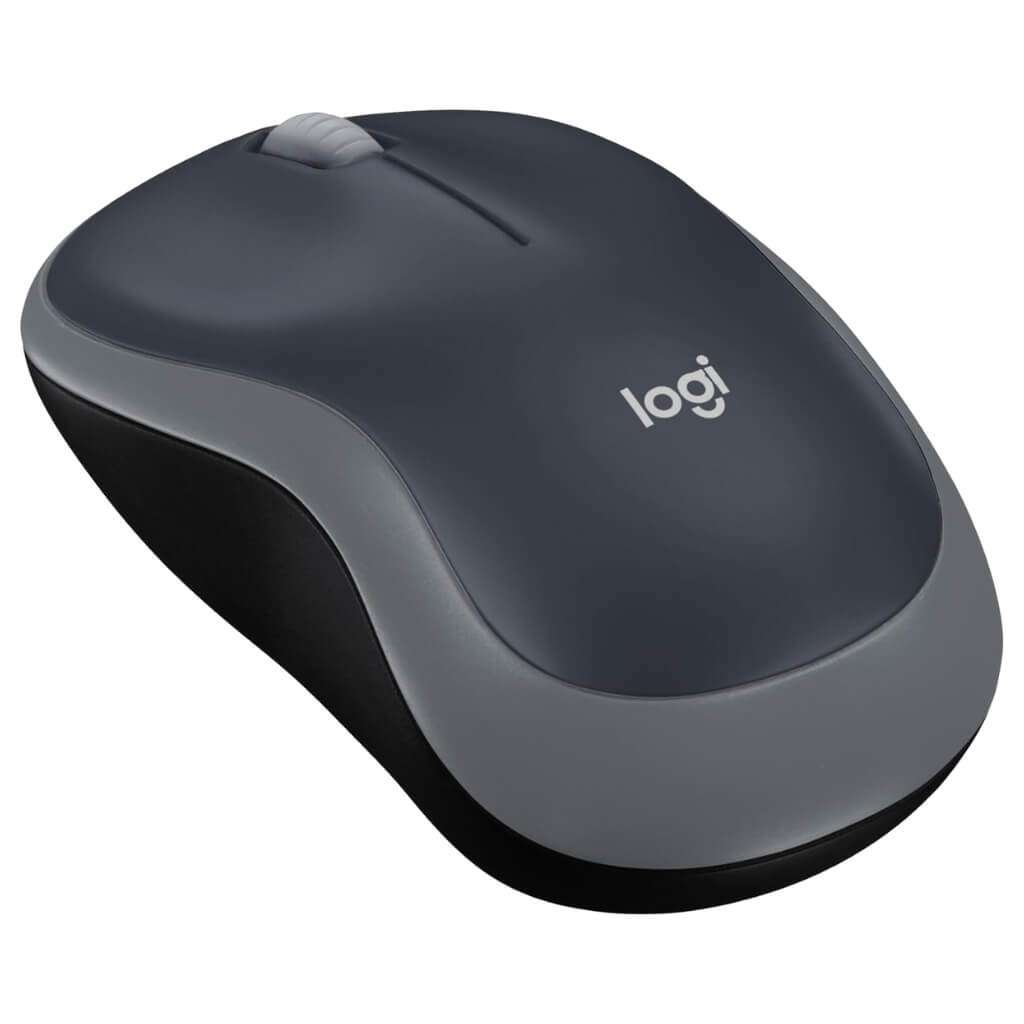
(Focus: Productivity & Pro Gaming)
The Undisputed King of Consistency
If I had to recommend one brand to a stranger, I would say Logitech. They own the market for reliability. I currently use the G PRO X SUPERLIGHT 2 for my gaming setup.
I also keep an M240 Silent in my laptop bag.
The first thing you notice with their high-end gaming mice is the weight. At 60 grams, it feels like moving air. I use it on a glass mousepad.
This usually confuses sensors. But the HERO 2 sensor tracks perfectly. On the office side, the M240 is my savior for late-night work.
The “Silent Touch” clicks are quiet. My partner doesn’t hear a thing, even when I work in the same room.
Pros:
Insane Battery Life: The office models often last 12-18 months on a single AA battery. I often forget they even need power.
Sensor Accuracy: Even the budget models track smoothly on wood and laminate.
Build Quality: They survive drops. I’ve knocked my Logitech mice off the desk multiple times. They keep working.
Cons:
Price Premium: You pay extra for the brand name. This is true for the “G” gaming series.
Generic Shapes: The office mice are often small. This isn’t great for people with massive hands.
2. Razer
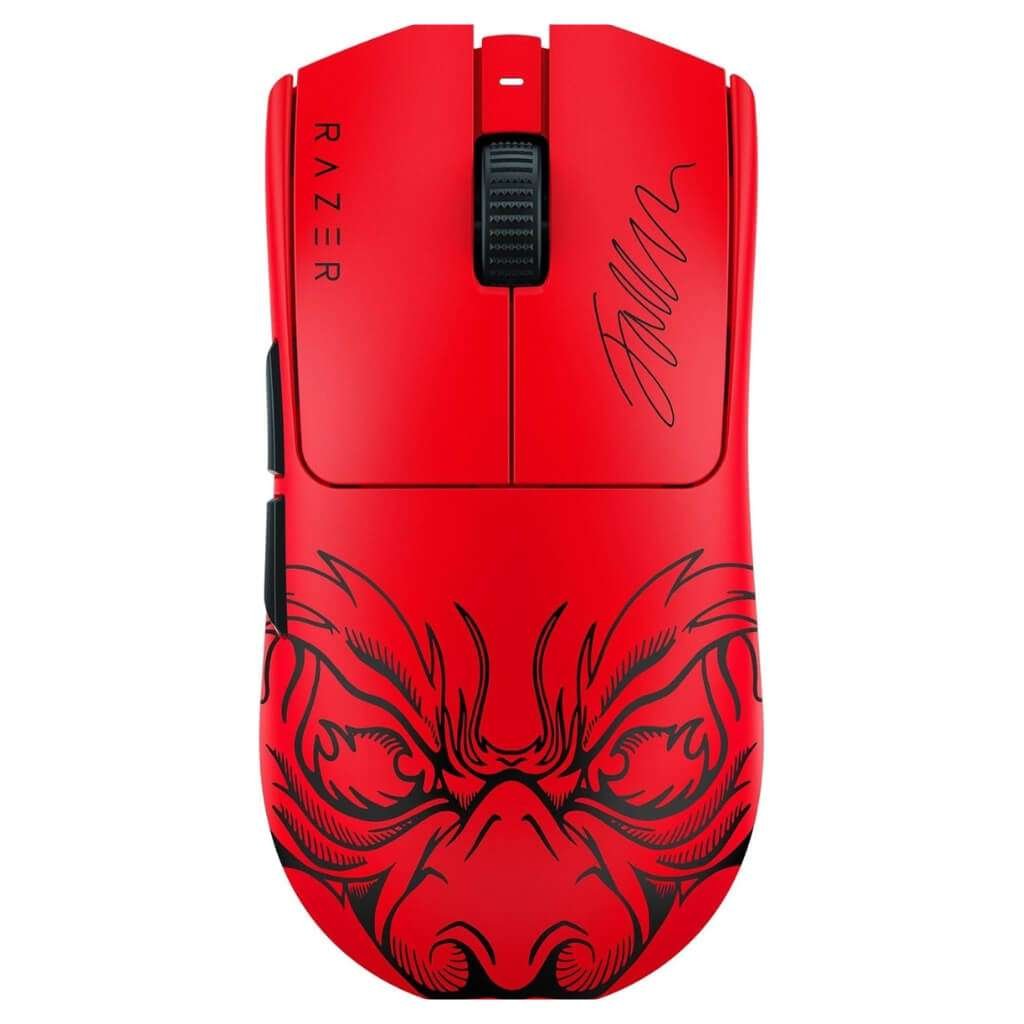
(Focus: High-Performance Esports)
Speed and Precision for the Competitive Edge
When I want to win, I switch to Razer. Logitech focuses on generalists. Razer builds tools for speed.
If you are into FPS gaming, this is for you. Their “HyperSpeed” wireless technology is industry-leading now.
I tested the Viper V3 Pro over the course of a week of intense gaming. The polling rate goes up to 8000Hz.
On my 240Hz monitor, the cursor movement looks liquid smooth. The optical switches are also a major win.
They use light beams instead of physical contacts to register clicks. They never “double-click” by accident.
Pros:
Optical Switches: These are more durable than mechanical switches.
Grip & Shape: The matte coating provides is grippy texture. It works even when your hands get sweaty. The shape is ideal for users with a “claw” grip.
Aesthetics: They look sharp. The design is aggressive but clean.
Cons:
Battery Drain: High-performance devices require a significant amount of power. I charge my Razer mouse weekly. My office mouse lasts a year.
Software-Heavy: The Razer Synapse software offers excellent customization options. However, it can be annoying due to frequent updates.
3. Tecknet
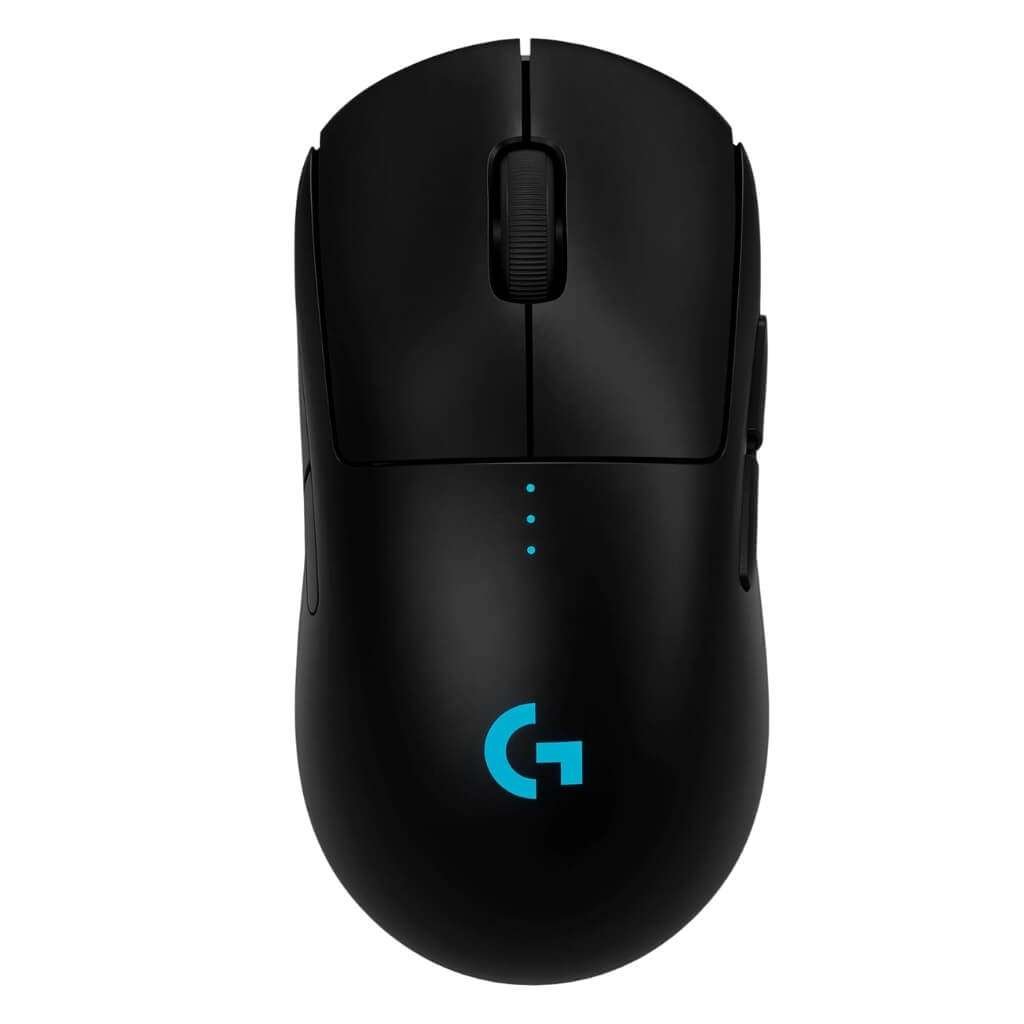
(Focus: Value & Functionality)
The Value Champion
I was initially skeptical about Tecknet. A mouse this affordable shouldn’t be this good. But I used the Pro Wireless model for a few months.
I was proven wrong. This is the brand to buy if you want adjustable DPI without spending premium prices.
The standout feature is the DPI button, located right at the top. I switch between 800 DPI for precision Photoshop work and 2400 DPI for fast web browsing.
The “TruWave” technology works on most surfaces. It struggled a bit on clear glass. It feels surprisingly solid in the hand.
It features rubberized grips, a feature typically not found in the budget category.
Pros:
Unbeatable Value: You get 90% of the performance of a premium mouse for 20% of the price.
Battery Life: They claim up to 30 months on some models. During my 3 months of testing, the battery indicator has remained unchanged.
Ergonomics: Good size for medium to large hands.
Cons:
Loud Clicks: It has a standard “clicky” sound. It is not suitable for quiet libraries.
USB-A Only: Most models use a standard USB receiver. You will need an adapter for newer MacBooks.
4. AOC
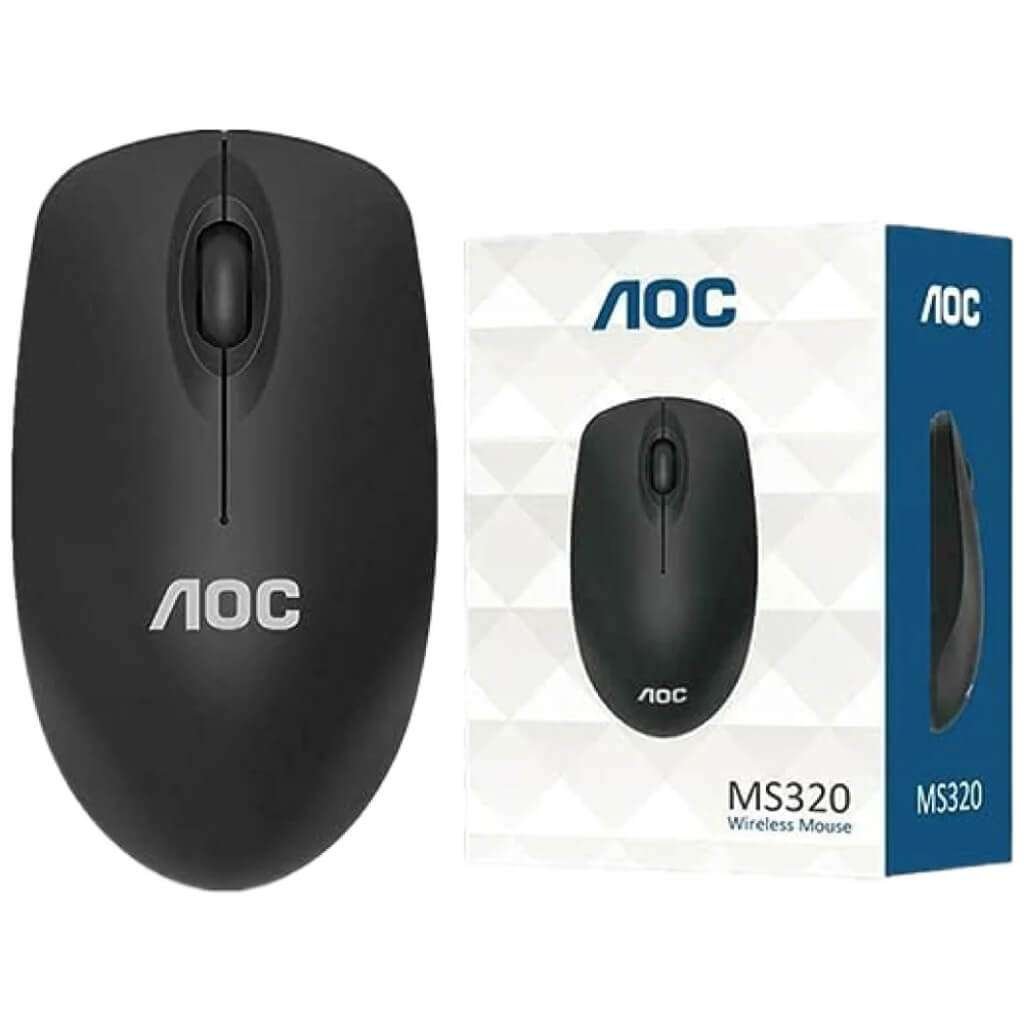
(Focus: Ergonomics & Health)
The Wrist Saver
Your forearm might ache after a long day. If so, look at this brand. AOC has released the MS320 Vertical Mouse to combat RSI. It looks weird. But it works.
I switched to this mouse when I started to feel a tinge of carpal tunnel syndrome. It forces your hand into a “handshake” position.
This untwists the bones in your forearm. Aiming the cursor felt awkward for the first 48 hours.
I kept missing buttons. But once my brain adjusted, the relief was real. The soft-touch finish feels premium.
Pros:
Health Benefits: Genuine relief for wrist and forearm tension.
Price: Much more affordable than expensive ergonomic competitors.
Comfort: The thumb rest is perfectly positioned.
Cons:
Learning Curve: You will be clumsy with it for the first few days.
Not for Gaming: The sensor is fine for work. It is too slow for fast-paced gaming.
5. VssoPlor
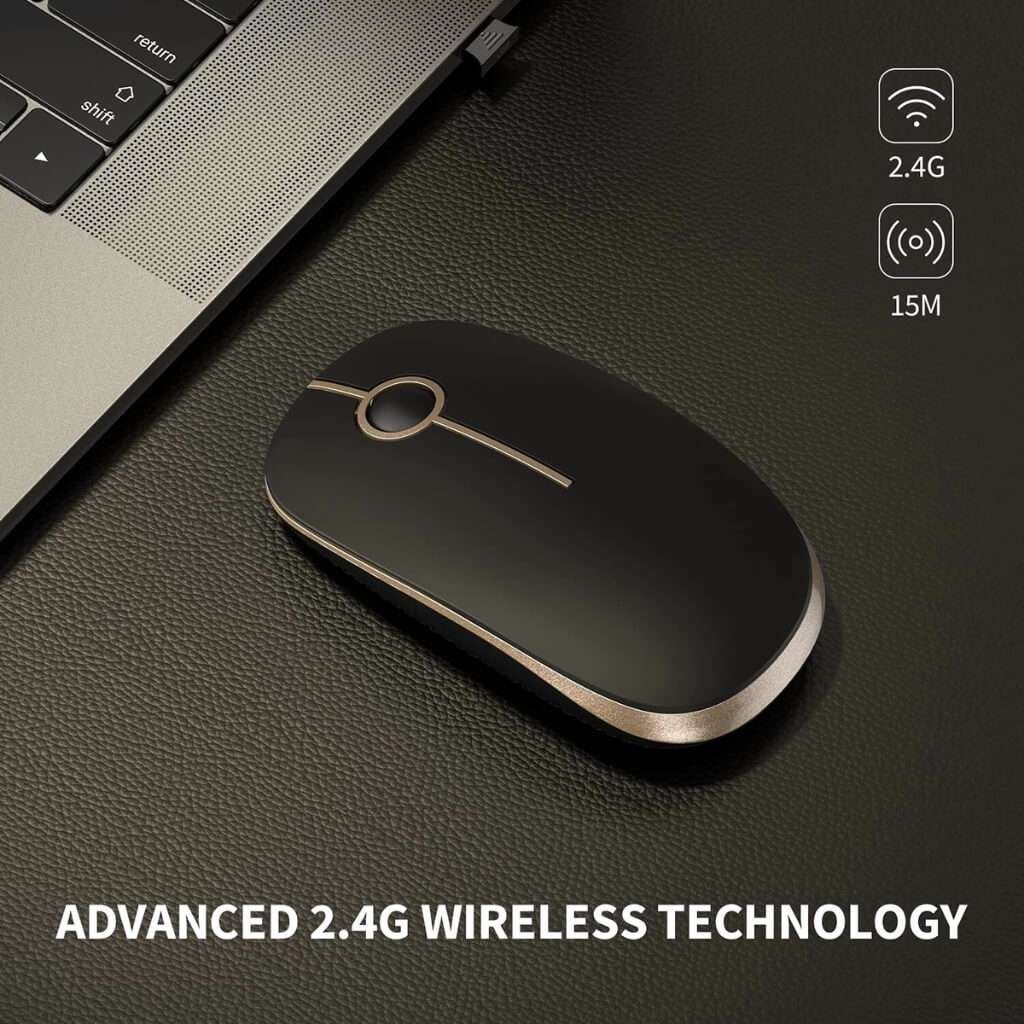
(Focus: Slim Design & Travel)
The Laptop Bag Essential
Sometimes you don’t need RGB lights. You just need a mouse that fits in a thin laptop sleeve.
VssoPlor specializes in these slim mice. They are perfect for students and digital nomads.
This mouse is incredibly flat. I threw it into the side pocket of my backpack. I barely noticed it was there.
It has a nice aesthetic. It matches modern Ultrabooks well. It lacks the arch support of a Logitech. But it is perfect for short bursts of work at a cafe.
Pros:
Portability: Extremely thin profile.
Design: Looks more expensive than it actually is.
Quiet Clicks: Many of their models feature silent clicking mechanisms.
Cons:
Ergonomics: It is very flat. Your hand has no arch support. Not recommended for 8-hour workdays.
Durability: Feels a bit lighter and more fragile than the big brands.
How Does a Wireless Mouse Actually Work?
The magic behind your wireless mouse isn’t complicated. Knowing the difference between connection types will save you frustration.
The Core Technology
A wireless mouse uses a Radio Frequency (RF) transmitter. It sends data to a receiver.
2.4GHz (USB Receiver): Used by Logitech G, Tecknet, and VssoPlor. You plug a tiny USB dongle into your PC. This creates a dedicated “highway” for your mouse signal. It is fast and stable.
Bluetooth: Used by Logitech M240 and modern Mac mice. This connects directly to your laptop’s internal Bluetooth radio. It frees up a USB port. It can sometimes have a slightly higher latency than a dongle.
Dual-Mode Versatility
We are seeing more mice that offer both connections. You can use the dongle for your gaming PC. Then you flip a switch to Bluetooth to control your iPad. If you work with multiple devices, look for this feature.
Latency Myths Debunked
“Is wireless slower than wired?”
In 2015, yes. In 2025, no.
Top-tier mice, such as the Razer Viper V3, utilize proprietary wireless technology. It is actually faster than many cheap wired mice. Unless you are a robot, you cannot feel the difference.
Matching Brands to Your Lifestyle: Which Mouse Fits You?
Not all mice are created equal. Here is how I categorize the top brands based on user needs.
1. For the Power User & Office Pro (Logitech & Tecknet)
You need battery life and comfort.
Look for: “Marathon” battery ratings (12-36 months) and “Silent” switches.
Why: You don’t want your mouse dying in a meeting. You don’t want to annoy your coworkers.
2. For the Competitive Gamer (Razer & Logitech G)
You need speed and weight reduction.
Look for: “Ultralight” (under 60g) and “High Polling Rate” (1000Hz – 8000Hz).
Why: In games like Valorant, milliseconds matter. Heavy mice fatigue your wrist. Light mice let you aim faster.
3. For the Traveler & Student (VssoPlor)
You need something that is easy to carry.
Look for: “Slim” or “Low Profile” designs.
Why: These slip easily into a laptop sleeve. They offer reliable performance for homework without adding bulk to your bag.
4. For Comfort Seekers (AOC & Vertical Designs)
You need pain relief.
Look for: “Vertical” or “Ergonomic” keywords.
Why: These rotate your wrist 57 degrees to a natural position. Your future self will thank you for buying an ergonomic mouse.
Critical Features: What Specs Are Actually Necessary?
Don’t get fooled by big numbers on the box. Here is what you actually need to check.
DPI (Dots Per Inch)
What it is: How sensitive the mouse is to movement.
The Truth: You do not need 30,000 DPI. For standard office work, 1000 to 1600 DPI is the sweet spot. High DPI is primarily intended for gamers with ultra-high-resolution monitors.
Power: Rechargeable vs. Replaceable
Rechargeable (USB-C): Convenient. No waste. Standard on premium mice ($50+). You can charge while you play.
AA/AAA Battery: The battery lasts forever. Common on budget mice. I prefer AA batteries for travel mice. I can instantly swap them out if they die. I don’t have to wait for a charge.
Troubleshooting & Future Trends
Even the best mice glitch sometimes. Here is how to fix common issues.
Solving “Stuttering” Cursors
If your wireless mouse is lagging, it is usually interference.
Move the Receiver: Is your USB dongle plugged into the back of your PC tower? Move it to the front.
Check Surface: Optical sensors hate glass. Use a mousepad.
USB 3.0 Interference: USB 3.0 hard drives can interfere with 2.4GHz mouse signals. Keep your mouse receiver away from your external hard drive ports.
The 2026 Outlook
USB-C Universal: By 2026, Micro-USB will be dead. Ensure your new mouse charges via USB-C.
Sustainability: Brands are moving to Post-Consumer Recycled (PCR) plastics. Logitech is a leader here.
Multi-Device Flow: Software is getting better. Enjoy smoother text copying and pasting across different computers with just a simple mouse movement.
Conclusion
For the ultimate all-around performance, consider Logitech’s G Series. It is flawless and a joy to use.
If you want the best value for your office work, Tecknet offers incredible features at a great price.
For pain relief, the AOC Vertical Mouse is the cheapest health insurance you can buy for your wrist.
Stop fighting with cables. The freedom of a good wireless mouse is a small upgrade. But it makes a massive difference in your daily digital life.
FAQ
What do I do if I lose the USB receiver?
This is a common issue. If you have a “Unifying” receiver (Logitech), you can buy a replacement dongle and pair it.
However, for most budget brands (like Tecknet or VssoPlor), the dongle is uniquely paired to that specific mouse.
If you lose it, you often have to buy a new mouse. This is why I recommend mice with dual connectivity (Bluetooth + USB). If you lose the dongle, you can still use Bluetooth.
Does a wireless mouse drain my laptop battery?
Yes, but the amount is negligible. A USB dongle draws a tiny amount of power from your USB port.
A Bluetooth connection uses your laptop’s internal radio. Bluetooth is generally more power-efficient for the laptop than powering a 2.4GHz USB dongle.
However, neither will drain your laptop noticeably faster than a wired mouse.
Can I use a wireless mouse without a mousepad?
It depends on the surface. Modern sensors work great on wood, paper, and cloth. They fail on clear glass or highly reflective polished stone.
If you work on glass tables, you need a high-end mouse with a “Darkfield” or “Glass” sensor, or you must use a pad.
How do I clean my wireless mouse?
Turn it off first. Use a microfiber cloth with a small amount of isopropyl alcohol. Wipe the top surface.
Then, flip it over. Use compressed air to blow dust out of the sensor hole. Do not poke anything into the sensor lens.
Finally, clean the “skates” (the smooth pads on the bottom) to ensure they glide smoothly.

Aliza Khatun is a Digital Marketing Professional and the founder of DigiGenHub. She has helped various businesses grow their online presence through real-world experience in marketing, branding, traffic growth, and business strategy.
Through DigiGenHub, she shows how to build and grow a business from the ground up using Website Setup, SEO, Branding, Paid Promotion, and smart digital tools.
She also highlights how AI can be used to its full potential to make content creation, automation, marketing, and business growth faster and smarter.
She believes that the right knowledge, modern technology, and the right tools can help any individual or business build a stronger online presence.