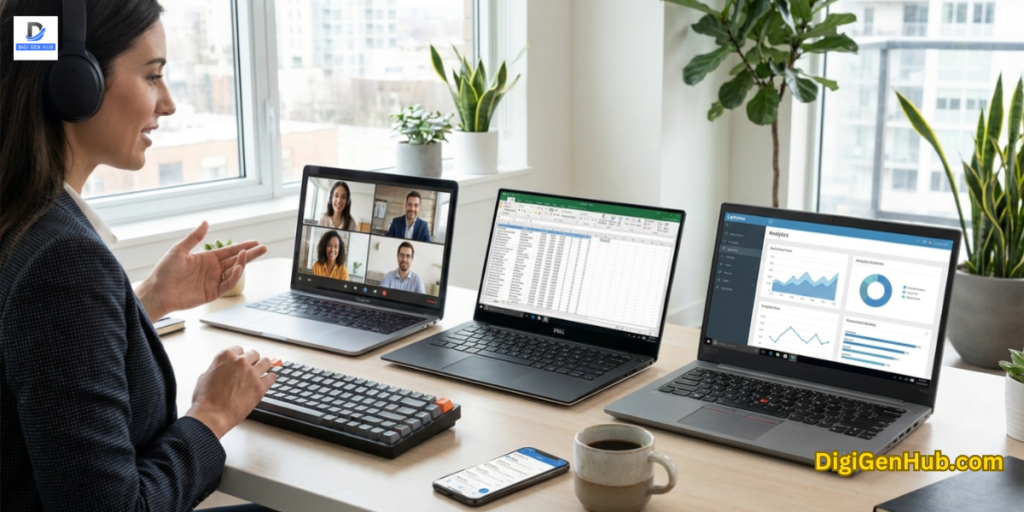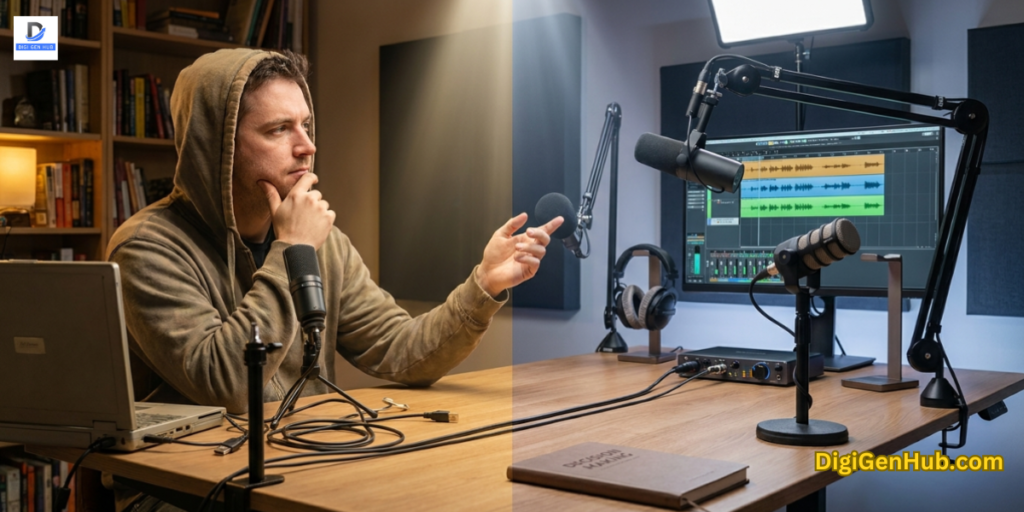
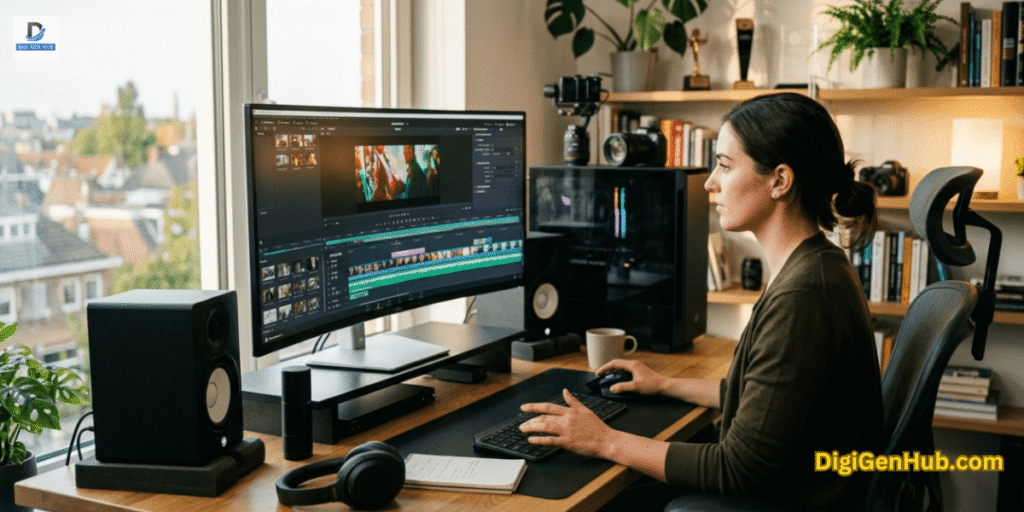
Your timeline is cramped. You zoom out to see the full sequence and every clip label vanishes.
You zoom in to make a fine cut and half your project disappears off the side of the screen.
You keep toggling between your effects panel and your preview window like you are playing ping-pong with your own time.
I have been there. It is one of the most frustrating parts of editing on a small screen.
Most people do not connect the frustration to the monitor. They blame their software, their system, or their speed.
The fix is simpler. Switching to an ultrawide monitor for video editing gives you back the one thing no faster CPU or extra RAM can replace.
Space. Timeline, preview, media bins, and colour scopes all open at once. All visible. No juggling, no hunting, no wasted minutes.
Which Ultrawide Monitor for Video Editing is Best for Daily Edits
Is your timeline cramped? Are you constantly scrolling horizontally to find that one clip?
A YouTube tutorial creator I worked with last year made the switch after months of struggling on a 24-inch screen.
He told me his edit time dropped within the first week. He did not suddenly get better at editing. He just stopped losing time looking for things he could not see.
Finding the right ultrawide monitor for video editing can be confusing due to the numerous specifications. I have tested and ranked a few options currently available for creators.
Ultrawide Monitor for Video Editing at a Glance
| Monitor | Resolution | Refresh Rate | Panel | Best For |
| Samsung Odyssey OLED G8 | 4K UHD (32″) | 240Hz | QD-OLED | Pro colour grading |
| Samsung ViewFinity S50GC | 3440×1440 | 100Hz | VA Flat | Budget daily editing |
| Sceptre 34″ Curved C345B | 3440×1440 | 165Hz | VA | First editing setup |
| CRUA 34″ White Curved | 3440×1440 | 165Hz | VA | Aesthetic desk builds |
| InnoView Portable 15.6″ | 1080p FHD | 60Hz | IPS | Travel and second screen |
Why Your Current Screen Is Slowing You Down
The problem with a standard 16:9 monitor is not its resolution. It is the horizontal space you lose every single day.
Open Premiere Pro or DaVinci Resolve on a regular screen and you face a choice every few minutes.
Either your timeline is wide enough to navigate, or your preview window is big enough to see your footage clearly. Rarely both.
You collapse the effects panel just to get a bit of room. You squint at tiny clip thumbnails. You scroll left to find the cut you made ten minutes ago.
A 34-inch ultrawide monitor for video editing at 3440×1440 gives you about 33% more horizontal space than a standard 27-inch monitor.
Your full sequence sits visible end-to-end. Your Lumetri scopes stay open on the left.
Your preview window runs at a proper size on the right. No toggling. No hunting.
A good desk for computers with enough depth matters here too. Pair your ultrawide with a solid workspace and the difference in your daily editing pace adds up faster than you expect.
For colourists in DaVinci Resolve, it goes even further. Your node editor, your video scopes, and your viewer all stay open at the same time. That changes the rhythm of a grading session completely.
1. Samsung 32” Odyssey QD-OLED G8 (G81SF)
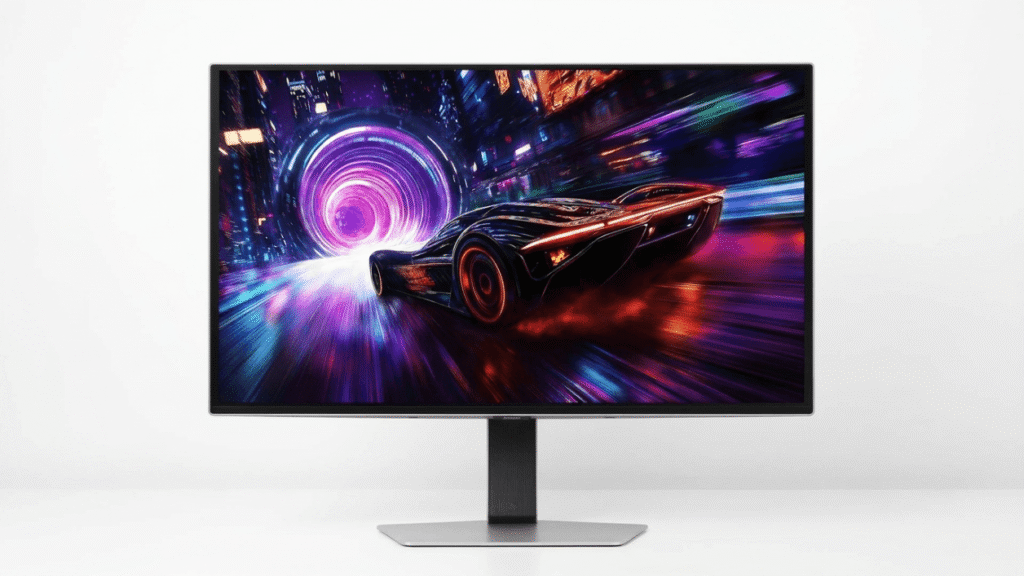
Buy this when colour accuracy is not a preference. When a wrong grade costs you a client.
The G8 uses Samsung’s third-generation QD-OLED panel. Each pixel shuts off completely in black scenes.
The contrast is something no IPS or VA panel can touch. In a dark interview scene or a moody cinematic grade, the difference is immediate. Shadows have genuine depth. Highlights do not wash into grey. Skin tones sit exactly where you put them.
At 4K on a 32-inch panel, the pixel density is sharp. Scrubbing high-res footage on a 240Hz panel feels noticeably different.
Timeline movement stays smooth. Frame-by-frame navigation has none of the blur you get on 60Hz office screens.
Tom’s Hardware confirmed it delivers pro-level DCI-P3 and sRGB accuracy with no calibration needed in SDR or HDR. A screen you can trust out of the box removes one variable from your whole workflow.
One thing worth knowing for 2026: the latest G81SF model removed the built-in Smart TV functions and speakers the 2024 version carried.
It is now a pure display. Most editors will not notice the loss. The G85SD at around $1,200 adds USB-C with 65W power delivery if you work off a laptop.
Pair this with a monitor calibrator for client delivery work. Even a screen this accurate benefits from a verified colour profile when approval is on the line.
Buy this if: You are a freelance colourist, a filmmaker grading for broadcast, or anyone whose work goes through colour review before delivery.
Skip this if: You cut YouTube videos or wedding content where colour grading is a minor part of your day.
2. SAMSUNG 34″ ViewFinity S50GC
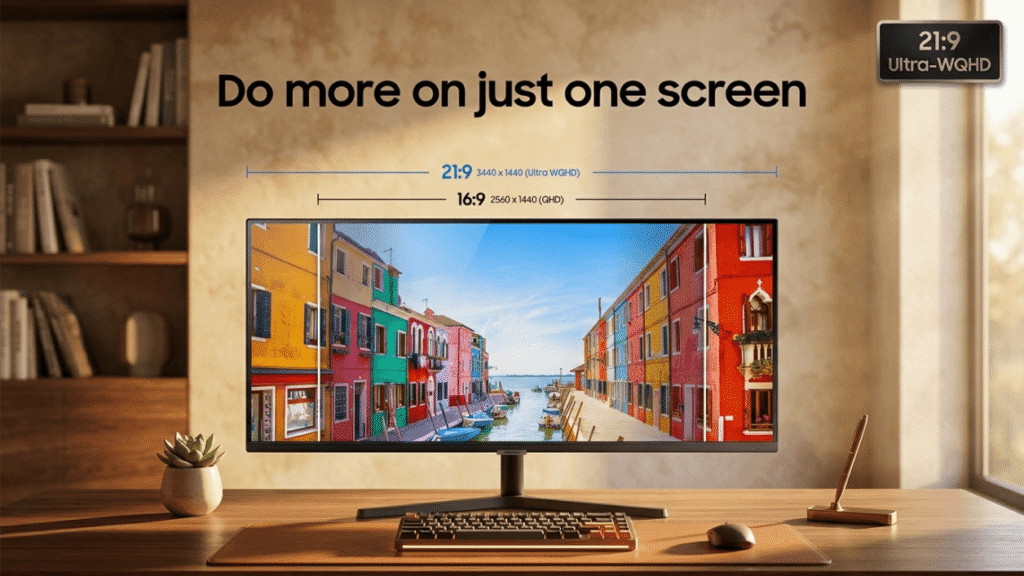
This one keeps appearing on every value list for a simple reason. It does exactly what a working editor needs at a price that needs no justification.
The S50GC is flat rather than curved. That might sound like a drawback but for some editors it is actually an advantage. Straight lines in motion graphics, text animations, and titles look exactly as intended with no barrel distortion at the edges.
If you do subtitle work or any graphic design alongside your cuts, a flat screen removes a small but persistent visual annoyance that curved monitors introduce.
The VA panel gives a 3,000:1 contrast ratio, three times better than a typical IPS panel. Dark scenes look noticeably richer. HDR10 support brings in over a billion colours. The ambient light sensor adjusts brightness automatically as your room changes throughout the day.
Picture-by-Picture mode lets you connect two computers and see both at the same time. Very useful if you switch between a Mac for editing and a PC for admin. Or if you want your phone screen visible while you work.
In April 2026, this monitor was hitting record lows around $199-$210 on Amazon, down sharply from its $330 retail price.
At that price, it is one of the best value ultrawide monitors for video editing available right now.
Buy this if: You do a mix of editing, writing, email, and admin throughout the day and want one screen that handles all of it.
Skip this if: You grade for clients who sign off on colour. The VA panel and limited colour gamut will not hold up to that standard.
3. Sceptre 34-Inch Curved Ultrawide
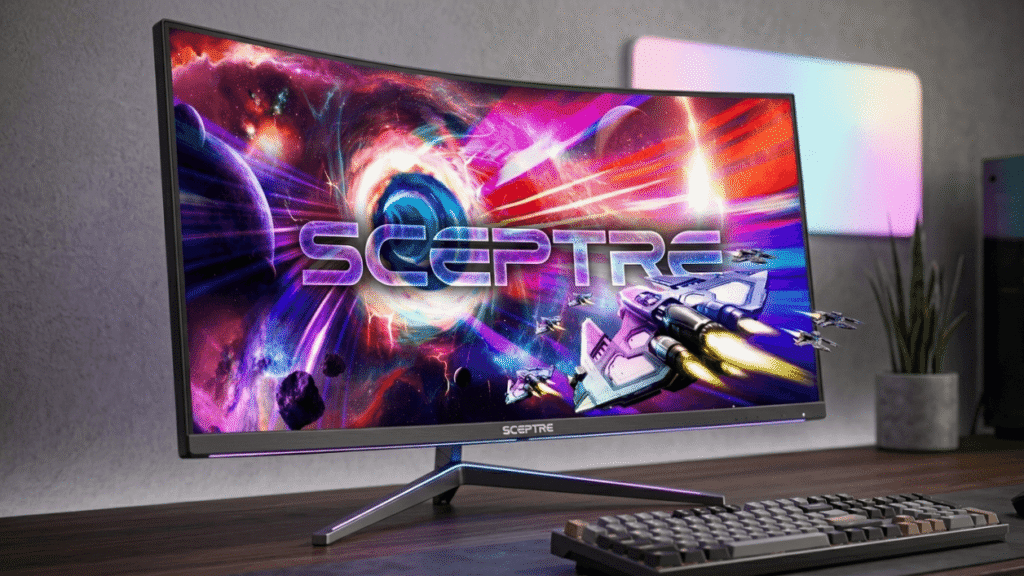
If you are building your first serious editing station and every dollar matters, start here.
The 1500R curve pulls the screen edges closer to your eyes. The corners sit at roughly the same focal distance as the centre.
Over a four-hour edit, that removes the subtle eye strain that comes from constantly refocusing across a flat wide screen. It feels natural after ten minutes. Going back to flat feels off after a week.
The C345B runs at 165Hz via DisplayPort with a 1ms response time. That matters less for frame-accurate editing and more for the general feel of your system.
Cursor movement, window dragging, and timeline scrubbing all feel fluid. 99% sRGB coverage handles everything going to web and YouTube with confidence.
Built-in speakers are included, which is useful for client review calls or checking rough audio without reaching for headphones.
Two DisplayPort inputs and two HDMI ports let you connect multiple sources and switch between them without swapping cables every time.
Colours need a small adjustment out of the box. Ten minutes in the settings on arrival and it lands somewhere very usable. Leave HDR off. Turning it on actually makes some content look worse on this panel.
At $200-$220 in June 2026, this ultrawide monitor for video editing gives you more than what you paid for.
Buy this if: You are a YouTuber, wedding videographer, or content creator wanting a big upgrade without spending close to $1,000.
Skip this if: You grade for cinema or broadcast delivery where sRGB coverage alone falls short of the colour space requirements.
4. CRUA 34” White Gaming Monitor
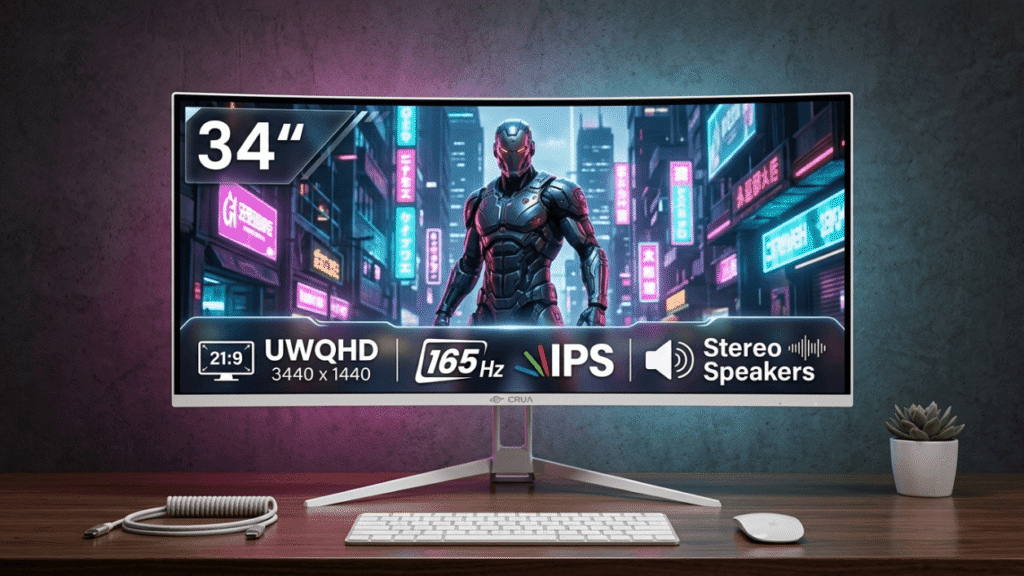
Almost every monitor on the market is black plastic. The CRUA is white. That single difference makes it photograph completely differently from everything else on this list.
If your desk ends up in your YouTube B-roll, your Instagram content, or your client presentations, this monitor fits a clean minimal look that black monitors simply cannot match.
It pairs naturally with white keyboards, white chairs, and light wood desks. The kind of setup that signals creative professional without saying a word.
The specs are solid. WQHD 3440×1440 resolution, 165Hz refresh rate, 120% sRGB coverage claimed, 4000:1 contrast ratio from the VA panel, 1500R curve, and built-in speakers included.
One honest note: independent tests show the out-of-box colour vibrancy is flatter than the claimed 120% sRGB figure suggests.
The 380-nit peak brightness is also on the lower side. In a bright room with a window directly facing you, close the blinds. These limits exist on almost every sub-$200 ultrawide, so the CRUA is not unusual here.
What sets it apart is purely the aesthetic. For creators whose desk setup is part of their personal brand, this monitor pulls double duty that no spec sheet can measure.
Buy this if: You film your workspace, care about a distinctive desk aesthetic, or want something that looks premium without spending premium prices.
Skip this if: You edit in a very bright room or need colour accuracy that holds up to professional delivery standards.
5. InnoView Portable Monitor (15.6 Inch)
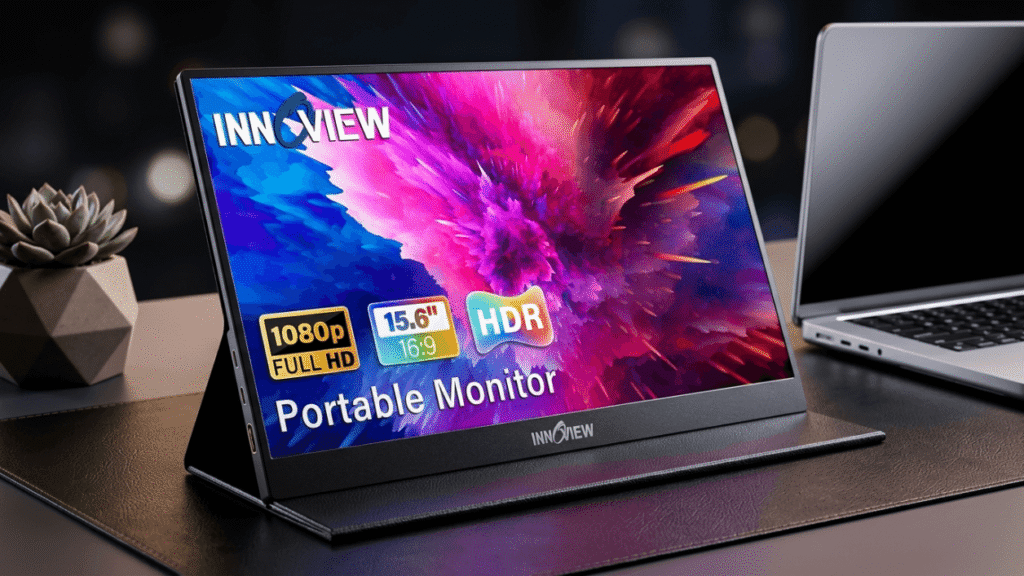
This is not a replacement for your main ultrawide monitor for video editing. It is the screen that saves every trip away from your desk.
The setup is simple. A 1080p IPS panel. 15.6 inches. A quarter-inch thin. 1.5 pounds. One USB-C cable connects and powers it from your laptop at the same time. No drivers. No software. No adapters needed. Slide it into the same sleeve as your laptop and you have two screens wherever you land.
For editors who travel, this changes the workflow completely. On a single laptop screen, you are either watching your timeline or watching your preview window.
Plug this in and you have a proper dual-screen setup in a hotel room, a coffee shop, or a client’s office.
It ships with two USB-C ports and one standard HDMI port. Power passes through to your laptop while it runs.
The adjustable stand clicks into multiple positions without needing a separate prop. That matters more than it sounds when you are setting up on a small café table.
Brightness in direct outdoor sunlight is a genuine limit. Use it as a secondary reference screen in controlled indoor lighting and it holds up well.
A USB C hub pairs well with this setup if your laptop runs low on ports when you add a second screen and keep other devices connected at the same time.
Buy this if: You edit remotely, travel for shoots, or want a dedicated second screen for media bins and browser windows.
Works brilliantly as a permanent vertical monitor for scripts, chat windows, or music feeds.
Skip this if: You need it to serve as your main editing display. It is a companion screen, built for flexibility, not heavy workloads.
What to Look for Before You Buy
Choosing the right ultrawide monitor for video editing comes down to four things. Get these right and you will not regret the purchase.
Resolution
The 3440×1440 WQHD format is the right target for most editors this year. Sharp enough at 34 inches to show 4K footage clearly in your preview window.
Enough room for your timeline to breathe without constant scrolling. Less demanding on your GPU than a full 4K ultrawide, which means smoother playback on mid-range systems.
Anything below 3440×1440 on a 34-inch screen looks noticeably soft. 1080p ultrawide stretched to 34 inches is not comfortable for long editing sessions.
Panel Type
IPS panels give the widest, most consistent colour from any viewing angle. Two people reviewing your screen at the same time, IPS stays accurate for both. For DCI-P3 cinema delivery, IPS tends to be the professional standard.
VA panels produce deeper blacks and higher contrast. Colours shift slightly when you view from off to the side. This matters less when you sit directly in front. Better choice for dark editing rooms.
OLED, specifically QD-OLED as in the Samsung G8, is its own category. True black. Infinite contrast. Colour that nothing else replicates at this price. The cost reflects that.
After a long day editing, your back feels it too. A proper lumbar support pillow makes more difference to a four-hour editing session than most people expect.
Curved or Flat
A 1500R or 1800R curve works better for editing than a flat screen at 34 inches.
The curve keeps the edges at a similar focal distance to the centre. After a few hours, a flat ultrawide feels subtly more tiring than a curved one even if you cannot say why immediately.
The exception is motion graphics and title work where a flat screen’s straight edges are easier to align visually.
Refresh Rate
For video editing, 60Hz is functional. 100Hz to 165Hz is where timeline scrubbing and cursor movement feel genuinely smooth.
240Hz is more than you need for editing but often comes bundled with premium OLED panels.
A bright, well-lit workspace helps your eyes as much as the monitor does. A quality office desk lamp reduces eye strain during long sessions and makes the colours on screen easier to read accurately.
Conclusion
Picking the right ultrawide monitor for video editing is not complicated. It comes down to knowing what your work actually needs.
You grade for clients? Get the Samsung Odyssey OLED G8. Your colour work will thank you.
You edit daily on a budget? The Samsung ViewFinity S50GC at around $200 is hard to walk past right now.
Are you just getting started? The Sceptre 34″ Curved gives you everything that matters at an entry-level price.
Is your desk your brand? The CRUA White looks like nothing else in this price range.
You travel and edit on the go? Pack the InnoView Portable. One cable and you have two screens anywhere.
Every editor on this list saves time from day one. Stop squinting at a cramped timeline.
Pick the screen that fits your work and your budget, and move on to actually editing.
FAQ
Does switching to an ultrawide monitor for video editing make you faster?
Yes, directly and measurably. When your full timeline is visible, you stop scrolling to find clips.
When your preview and bins sit open together, you stop toggling panels back and forth. The time saving builds up across every single session.
Is 3440×1440 sharp enough to edit 4K footage?
Yes. You are not editing at a 1:1 pixel ratio. Your preview window scales the footage down to fit inside the screen. 3440×1440 gives you a sharp, detailed preview window without the GPU cost of running a full 4K display.
Do professional editors use ultrawide monitors?
Most do for timeline and assembly work. Some colourists add a dedicated reference monitor for the final grading pass.
The two are not mutually exclusive. The ultrawide handles the edit. The reference monitor handles the final colour check.
How much desk depth do you need for a 34-inch ultrawide?
Around 60 to 70cm of depth sits comfortably at normal viewing distance. A monitor arm lets you push the screen back further than a fixed stand allows and frees up your desk surface completely.
Is a monitor arm worth buying alongside an ultrawide?
For any ultrawide monitor for video editing, yes. A monitor arm costs between $30 and $80.
It frees your desk, lets you set the exact height and tilt, and makes it easy to move the screen back for wide shots or closer for detailed colour work.
Your machine also works harder with an ultrawide setup running. Good laptop cooling becomes more important when your GPU is handling video exports and driving a large display at the same time. Heat builds up fast and it slows your renders down.
Prices current as of June 2026. Check current Amazon listings before purchasing as they change frequently.

Aliza Khatun is a Digital Marketing Professional and the founder of DigiGenHub. She has helped various businesses grow their online presence through real-world experience in marketing, branding, traffic growth, and business strategy.
Through DigiGenHub, she shows how to build and grow a business from the ground up using Website Setup, SEO, Branding, Paid Promotion, and smart digital tools.
She also highlights how AI can be used to its full potential to make content creation, automation, marketing, and business growth faster and smarter.
She believes that the right knowledge, modern technology, and the right tools can help any individual or business build a stronger online presence.