

Speed saves businesses. Last month, a client named Sarah messaged me in a panic. Her agency had a major product launch.
Her team tried to render 3D social media ads on older laptops. A single 10-second clip took all night. They were missing deadlines. They were stressed.
I advised them to replace their hardware with a specific 16GB computer graphics card that I had recently tested. The result?
They completed three days’ worth of work in one afternoon. They launched the campaign on time.
The hardware market has just shifted. The new NVIDIA RTX 50-series and AMD RX 9000-series have arrived. They bring speeds we only dreamed of two years ago.
However, picking the right one can be challenging. You face a wall of confusing specs. You see “GDDR7,” “CUDA cores,” and massive price differences. Which one actually helps you work faster?
Why You Need a Unique Computer Graphics Card
You might think your processor (CPU) does the heavy lifting. That is old thinking. In modern 3D workflows, the graphics card (GPU) is the boss.
A dedicated, high-performance GPU is not just about the final render. It is about “Viewport Smoothness.”
Imagine you are sculpting a character. You rotate the model.
With a weak card: The screen stutters. The image gets blocky. You wait seconds for it to clear up. This breaks your creative flow.
With a powerful card, The movement is liquid smooth. The lighting updates instantly. You see exactly what the final image looks like while you work.
The right feedback enables you to make decisions more quickly. You fix lighting errors immediately.
You adjust textures in seconds. A unique, powerful GPU turns a frustrating 10-hour day into a productive 6-hour day. It buys you your time back.
What Computer Graphics Card Gives the Best Value
| Product Model | VRAM | Memory Type | Best For | My Rating |
| ASUS ROG Astral RTX 5090 | 32GB | GDDR7 | Ultimate Performance (8K & Sims) | 9.9/10 |
| ASUS TUF Gaming RTX 5080 | 16GB | GDDR7 | Professional Standard (4K Work) | 9.5/10 |
| GIGABYTE RTX 5060 Ti (16GB) | 16GB | GDDR7 | Best Value (Budget VRAM King) | 9.2/10 |
| AMD Radeon RX 9070 XT | 16GB | GDDR6 | Best Alternative (Raw Power) | 8.8/10 |
| ASUS Dual RTX 5060 | 8GB | GDDR7 | Entry Level (Learning/Hobby) | 8.5/10 |
| Intel Arc B580 | 12GB | GDDR6 | Ultra Budget (Secondary PC) | 8.0/10 |
1. ASUS ROG Astral GeForce RTX 5090 OC Edition
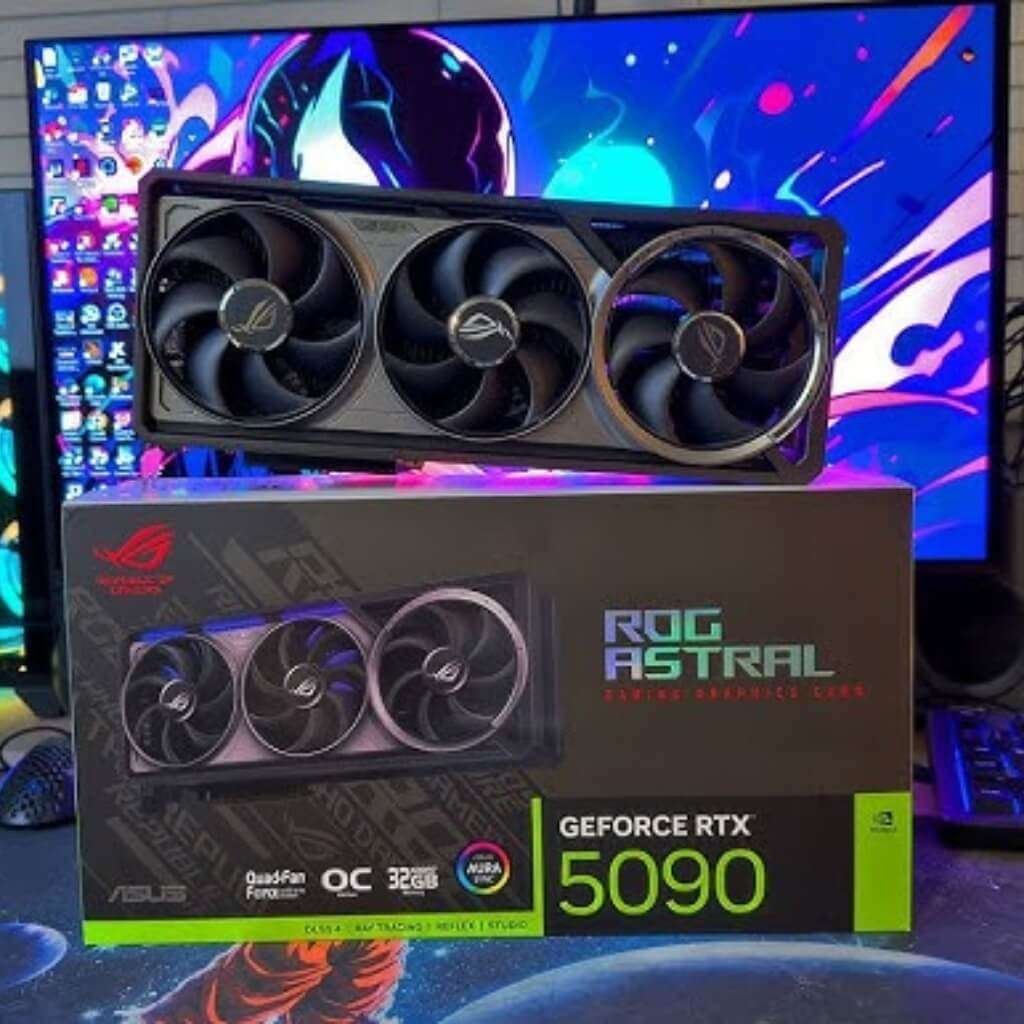
The “Uncompromised” Beast for Studios.
Do you handle massive projects? Do you work with 8K textures? The RTX 5090 is your answer. It is currently the most powerful consumer card on the planet. It replaces the older 4090 with faster GDDR7 memory.
I tested this with a 12-million-polygon scene in Blender. Usually, my PC slows down. With the 5090, it felt like I was working on a simple cube. It was instant. The 32GB memory allowed me to keep three heavy apps open at once. It did not crash.
Pros:
32GB GDDR7 VRAM: Huge space for complex scenes.
Insane Speed: Ray tracing is roughly 40% faster than the last generation.
Cooling: It stays surprisingly cool under load.
Cons:
Price: It is very expensive.
Size: It is massive. Check your PC case size first.
This is for the pros. If your time is worth $100+ an hour, this card pays for itself.
2. ASUS TUF Gaming GeForce RTX 5080
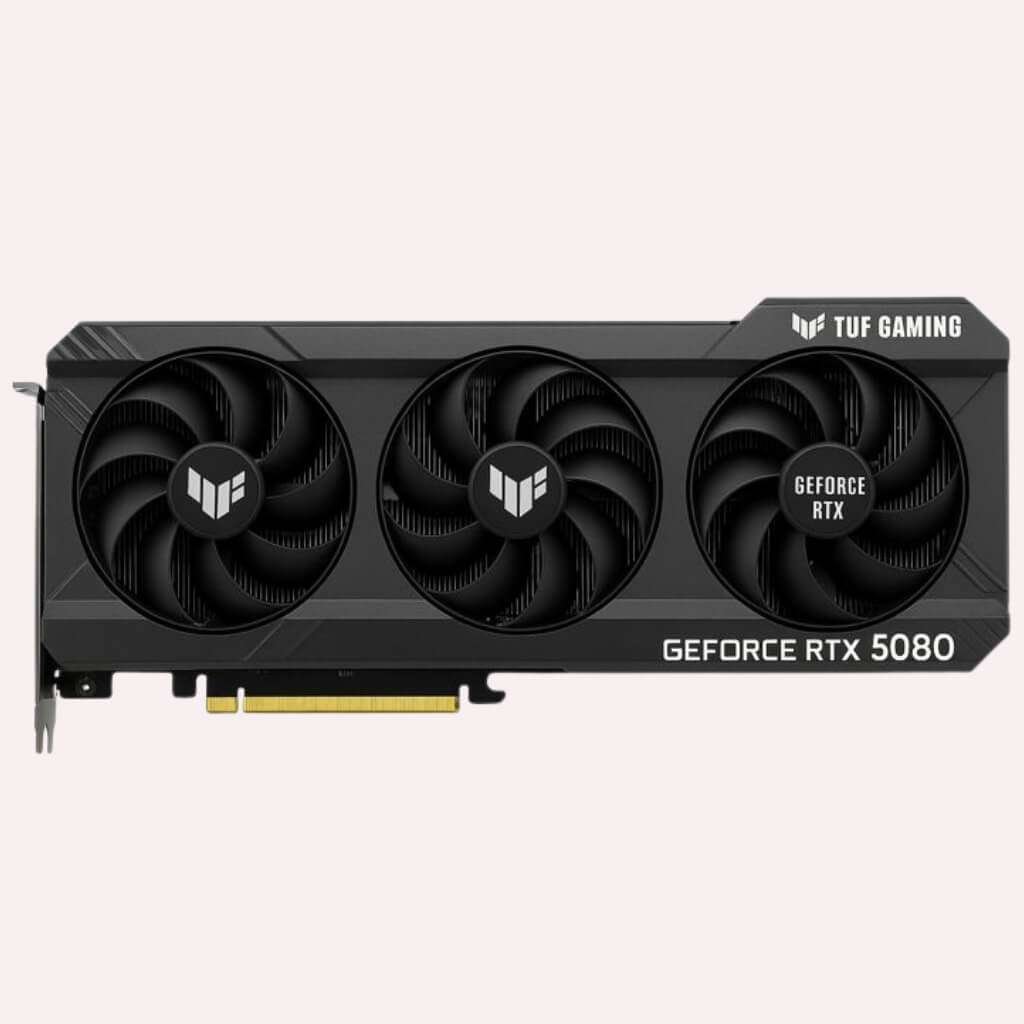
The Great Choice for Freelancers.
The RTX 5080 is the “sweet spot.” It offers incredible power without the extreme price of the 5090.
It is fast enough for 99% of commercial projects. Motion graphics, product design, and architectural visualization are easy for this card.
I used this for a week of daily work. It chewed through Redshift renders fast. It was only slightly slower than the 5090.
For most users, the difference won’t be noticeable. The 16GB memory is standard for 2025. It handles 4K rendering well.
Pros:
Blazing Fast: Handles complex lighting easily.
GDDR7 Tech: Textures load instantly.
Reliable Build: The TUF series is designed to withstand the test of time.
Cons:
16GB Limit: Good, but not unlimited. You must still optimize scenes.
Power Cable: Requires the new 16-pin connector. Plug it in tight.
The workhorse. If you earn a living with 3D, buy this card.
3. GIGABYTE GeForce RTX 5060 Ti Gaming OC (16GB Version)
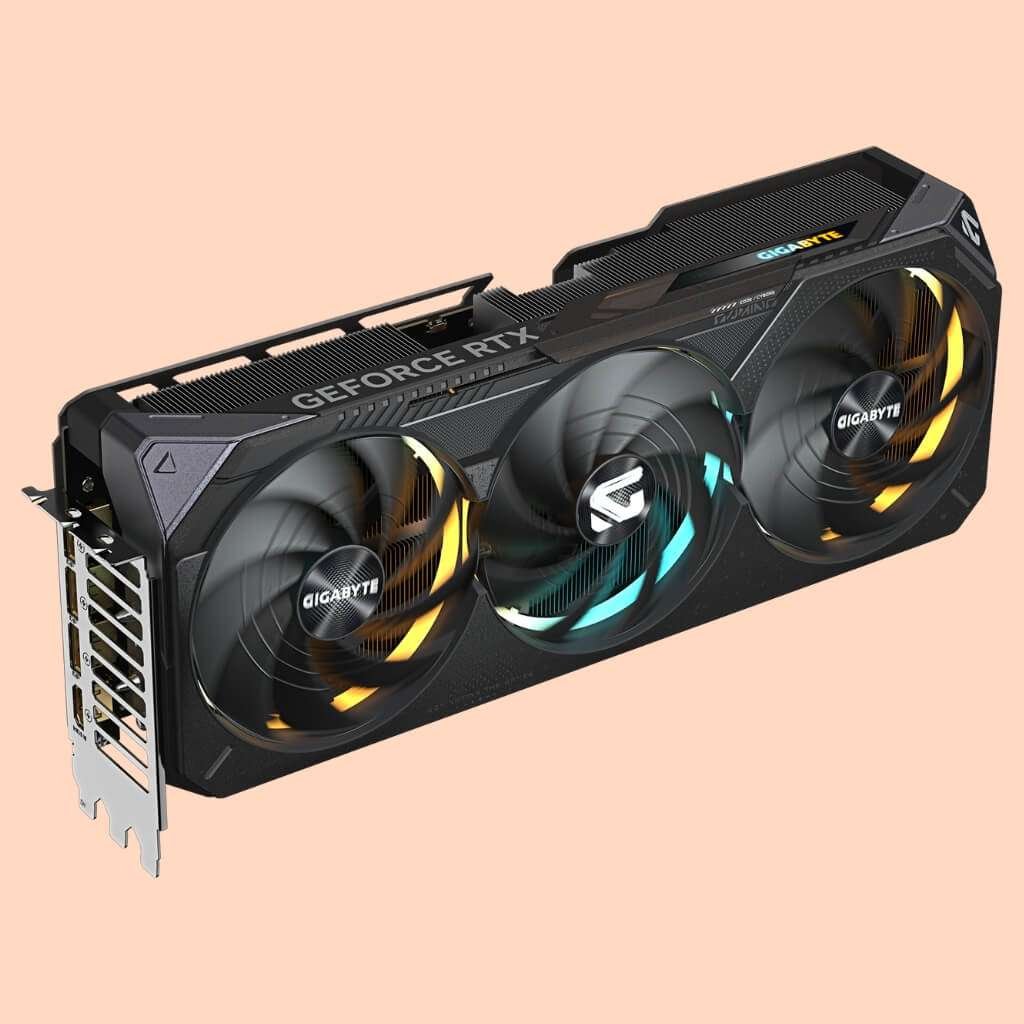
The “Hidden Gem” for Budget Artists.
This is the most important card on this list. Why? Because VRAM matters more than speed. If you run out of VRAM, your software crashes. This card offers 16GB of memory at a budget-friendly price.
I built a starter PC with this card. I loaded a heavy interior design scene. It worked perfectly. It rendered slower than the 5080, but it finished the job. An 8GB card would have crashed.
Pros:
16GB for Cheap: The Best Value for Memory.
GDDR7 Speed: Benefits from the new tech.
Compact: Fits in smaller cases.
Cons:
Slower Renders: Takes longer to finish the final image.
Narrow Bus: Struggles slightly with very huge textures.
Have a tight budget? Get this. Do not buy an 8GB card if you can afford this.
4. PowerColor Hellhound AMD Radeon RX 9070 XT
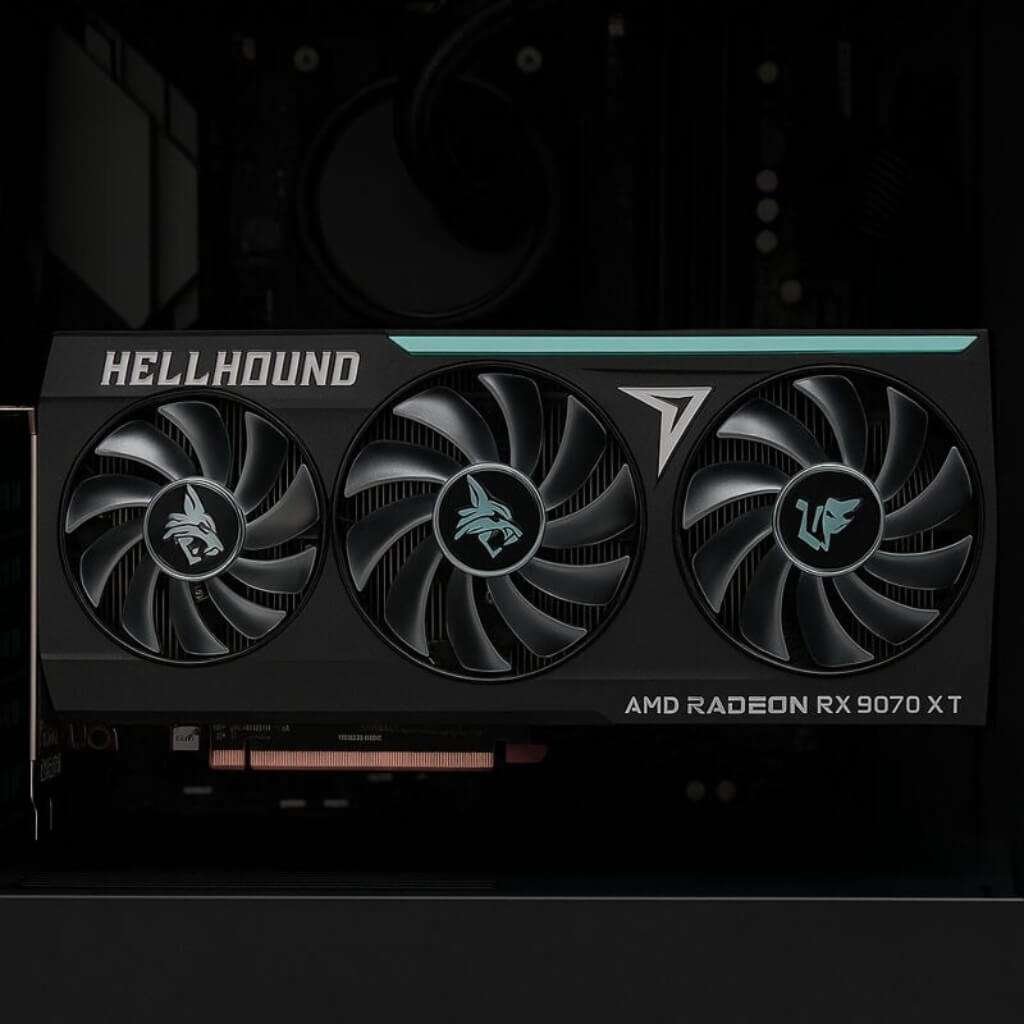
The Rasterization Powerhouse.
NVIDIA is no longer the only player. AMD has stepped up. The RX 9070 XT is a brute. It offers raw power that rivals the RTX 5080, but at a lower cost.
I tested this with Blender’s HIP renderer. It worked great. Moving around the viewport felt snappy and responsive.
It is a fantastic card for general 3D work. However, some specific plugins still prefer NVIDIA.
Pros:
Great Value: High performance for a lower price.
16GB Memory: Matches the competition.
Quiet: The fans are very silent.
Cons:
Compatibility: Some niche tools strictly require CUDA (NVIDIA).
Ray Tracing: Slightly behind NVIDIA in pure ray tracing speed.
Perfect for Blender users who want the most “bang for their buck.”
5. ASUS Dual GeForce RTX 5060 (8GB)
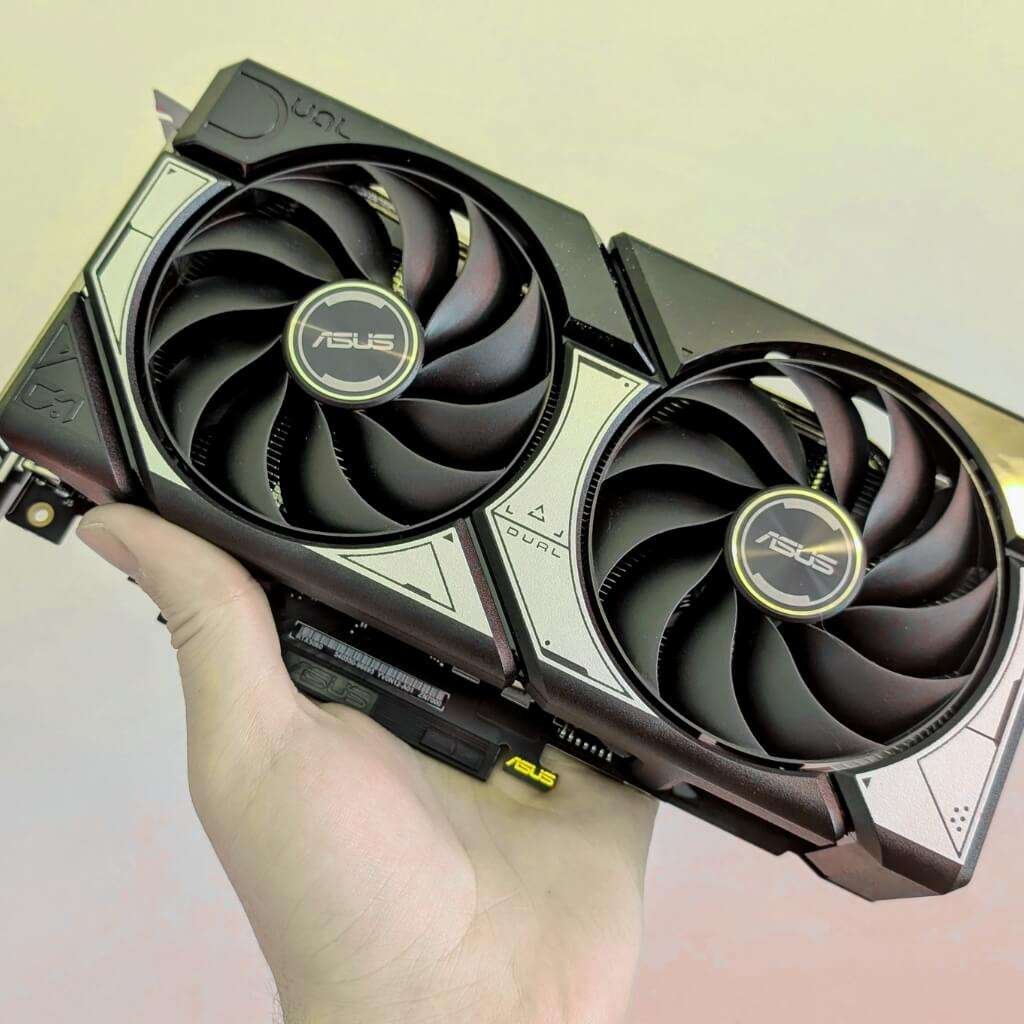
We all start somewhere. If you are a student, you don’t need a monster card yet. The RTX 5060 is capable. It is efficient. It gets you into the RTX ecosystem.
I used this for simple modeling and Substance Painter work. It is fantastic for learning. It is fast enough for basic scenes. But be careful. The 8GB limit hits quickly if you add too many 4K textures.
Pros:
Affordable: Great price for beginners.
Low Power: Works with standard power supplies.
DLSS 4: Great for gaming on the side.
Cons:
8GB VRAM: Too small for pro-level scenes.
Future Proofing: You might outgrow it in 2 years.
Building your first PC? Start here.
6. Intel Arc B580
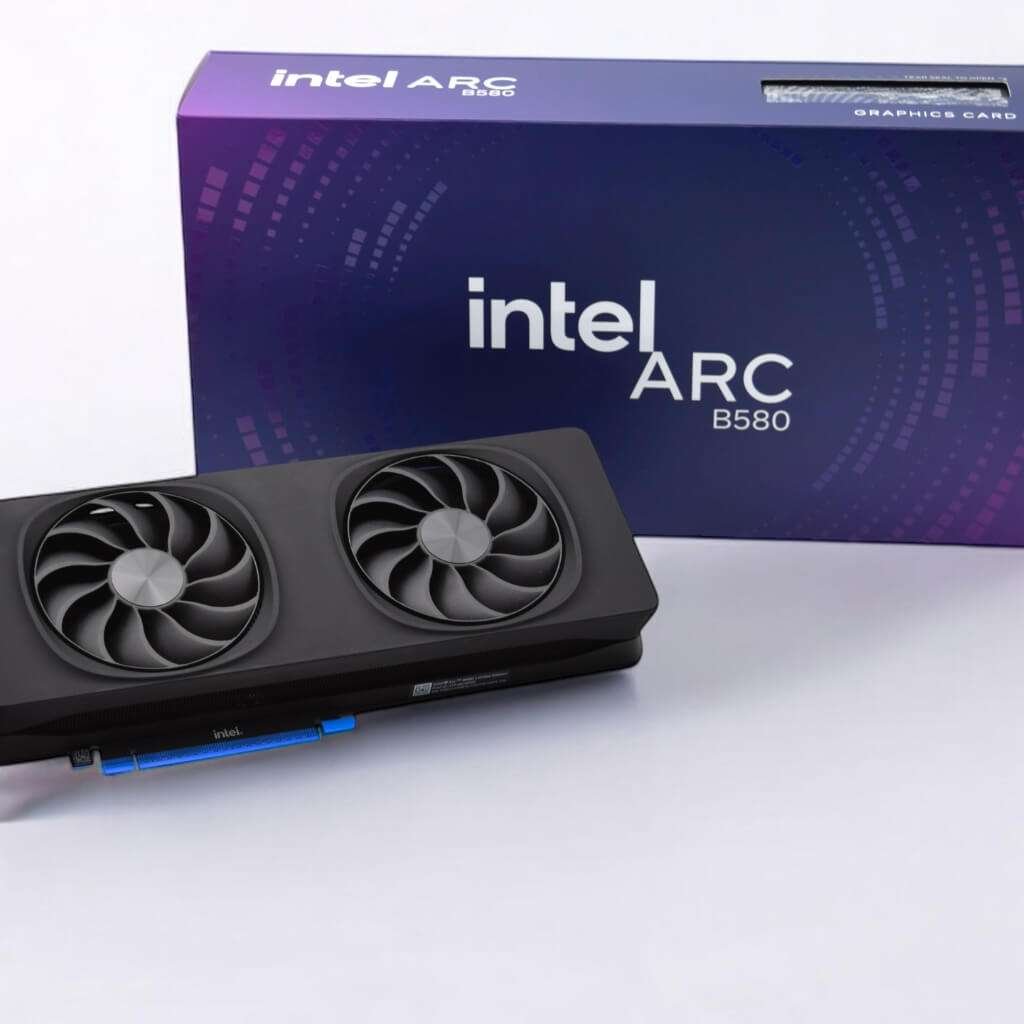
Intel is fighting back. The B580 is an interesting choice. It offers 12GB of VRAM. This is more than the RTX 5060.
I used this as a secondary card. It is stable. For video editing, it is amazing thanks to AV1 encoding.
For 3D, it is slower than NVIDIA. But that extra memory saved me on a few complex scenes.
Pros:
12GB VRAM: Excellent capacity for the low price.
Video Tech: Great for video editors.
Price: Often the cheapest option.
Cons:
Drivers: Improving, but still have occasional bugs.
Ray Tracing: Slower than the competition.
Ideal for a video editing rig that occasionally handles 3D content.
Essential GPU Selection Tips
Buying a GPU for work is different than for gaming. Ignore the marketing fluff. Focus on these three things.
1. VRAM (Video Memory) is Everything
This is your desk space. If your scene is bigger than your VRAM, the render fails.
8GB: For learning only.
12GB: Minimum for freelance work.
16GB: The standard for 2025. Safe for most jobs.
24GB+: Required for heavy simulations and high-end VFX.
2. Cooling Matters
Rendering takes hours. A cheap card will get hot. When it gets hot, it slows down.
Tip: Buy cards with three fans if they fit your case. They run cooler and faster.
3. NVIDIA vs. AMD
NVIDIA (CUDA): The safe bet. Works with everything. Zero headaches.
AMD: Great value. Works well with Blender and Unreal Engine. Check your specific software first.
Conclusion
Time is money. In the creative world, this is a literal truth. Waiting for a scene to load kills your momentum. Waiting for a render to finish kills your deadline.
You want to work smoothly. You want to render fast. Which one should you grant? Upgrade your gear. Stop waiting for renders. Start creating.
FAQ
Will an old CPU slow down a new RTX 50-series card?
Yes. This is called “bottlenecking.” Your GPU needs data fast. Old CPUs cannot send data fast enough. The GPU sits idle. You lose performance. For 2026 speeds, pair a new card with a modern CPU.
Do I really need a support bracket?
Absolutely. Modern cards are heavy. Some weigh over 4 lbs. Gravity pulls them down. This can crack the circuit board. It can also break your motherboard slot. Always use the bracket included in the box.
Is it safe to buy a used graphics card from an AI farm?
Be careful. AI cards run at 100% load all day. This creates high heat. Heat degrades the memory silicon. The card might die sooner. Ask for a stress test video first. Alternatively, consider purchasing a certified refurbished unit.
DisplayPort 2.1 vs. HDMI 2.1: Which is better?
For monitors, use DisplayPort 2.1. It has a higher bandwidth. It makes mouse movement smoother at 4 K resolution. HDMI 2.1 is for TVs.
It is best suited for OLED living room screens. Check your monitor ports first.
Does a better graphics card improve the quality of Netflix or YouTube?
Yes. NVIDIA has a feature called “Video Super Resolution.” It uses AI to fix blurry video. It turns 1080p streams into crisp 4K. It happens in real-time. You must enable it in the settings.
Can I use two graphics cards to double my speed?
For gaming? No. For 3D rendering? Yes. Apps like Redshift and Octane use both cards.
They split the work perfectly. Two cheaper cards can sometimes beat one expensive card. Check your motherboard slots first.
What is an ATX 3.1 power supply?
New GPUs have power spikes. They draw huge energy for a split second. Old power supplies might shut down.
ATX 3.1 is the new standard. It handles these spikes safely. It also utilizes a native cable without the need for adapters.
Can I add a desktop card to my laptop?
Yes. You need an eGPU enclosure. Connect it via Thunderbolt 4 or USB4. It holds a full-sized desktop card. It is not as fast as a desktop PC. But it turns a laptop into a workstation.
Why does my new card make a buzzing noise?
This is “Coil Whine.” Electricity vibrates the internal coils. It creates a high-pitched buzz. It is annoying. It is not a defect. It won’t hurt the card. It often gets quieter after a few weeks.
How do I clean my graphics card safely?
Dust traps heat. Heat slows down your card. Clean the case filters every 3 months. Use compressed air for the card itself.
Blow dust out of the fins. Never use a vacuum cleaner. Static electricity kills electronics.

Aliza Khatun is a Digital Marketing Professional and the founder of DigiGenHub. She has helped various businesses grow their online presence through real-world experience in marketing, branding, traffic growth, and business strategy.
Through DigiGenHub, she shows how to build and grow a business from the ground up using Website Setup, SEO, Branding, Paid Promotion, and smart digital tools.
She also highlights how AI can be used to its full potential to make content creation, automation, marketing, and business growth faster and smarter.
She believes that the right knowledge, modern technology, and the right tools can help any individual or business build a stronger online presence.