

Search by image Google connects products directly with buyers. It helps users find products by uploading or taking a photo. So, there is no chance of missing products while shoppers are scrolling.
My younger sister runs an online makeup store. Her lipsticks and palettes were hard to find.
We improved her images, added captions and tested them with Google Lens.
Soon, her products started appearing in visual searches. Orders and visits went up quickly.
You must focus on visuals that AI can read. Use simple filenames, clear captions, structured data and multiple angles.
Add short questions or voice prompts to guide searches. AR previews and multi-search make images more interactive.
Even a quick look at well-optimized images can bring clicks and sales. Stores that focus on images get noticed and grow faster.
Search by Image Google: How Visual Search Changed
People once typed words to find pictures. Now they use pictures to find answers.
Google’s image search has grown into something much larger. AI can now read pictures like humans. It sees shapes, colors and context. It can even read text inside an image.
Google says more than 1.5 billion people use Lens every month to look up what they see. That’s proof of how fast users are switching from typing to seeing.
What “Search by Image Google” means now
“Search by image” is no longer a single feature. It’s a full visual system that works through:
Google Lens – turns any photo, screenshot, or camera frame into a search.
AI image reading – spots items, brands, words and settings, then connects them with web data.
Context search – finds not just similar pictures but meaning. For example, snap a flower and get its name, care tips and nearby stores selling it.
Multi-search – you can mix image, text and voice in one query. This rolled out in Google’s new AI Mode in late 2025.
So when you use “Search by image Google,” you’re not just uploading a photo. You’re sending a visual question into Google’s entire AI engine.
From Images to SGE: a short history
2001 – 2002: Google Images let users type words to get photos.
2017: Google Lens arrived and started turning cameras into search tools (ignitevisibility.com).
2018 – 2023: Lens spread to Google Photos, the Google app and Chrome browser (macrumors.com).
2024: Google launched Search Generative Experience (SGE) — results created with AI summaries (blog.google).
2025: Visual input became part of SGE. You can drop an image, ask a question and get AI-driven context instantly.
This steady link from text to photo to AI turned “Search by Image” into the core of modern Google Search.
Why is it beneficial
For users, it saves effort. You point, tap, or upload and you get precise matches for shoes, tools, books, plants, anything.
For creators and online sellers, pictures now act like doors to your site. A clean, descriptive image can pull a visitor faster than a long product title.
Image search traffic keeps rising. Google’s internal Lens data shows tens of millions of daily visual queries in shopping categories.
This change also fits how people browse on mobile, less typing, more tapping.
Is “Search by Image Google” the same as Google Lens?
Not exactly. “Search by image” is the action. Google Lens is the tool.
Most of today’s image searches run through Lens, even if you start from Google Images or Chrome.
Official help pages confirm it: “Search what you see with Lens. Use a photo, your camera, or almost any image…” (search.google).
Case Study: Lenovo
Brand: Lenovo – Global PC and Laptop Maker
Lenovo tracked rising “search by image” activity for laptops. Visual queries went up 38% year-on-year. They renamed image files, added structured product data and linked each picture to shopping results.
Result: U.S. online sales from image-based visits rose 12% between April and June 2025.
Quote from Lenovo marketing lead: “We saw people finding us through screenshots shared on social and Lens searches. Optimizing our visuals gave us new buyers.”
Website: https://www.lenovo.com/
How to Use Search by Image Google on Different Devices
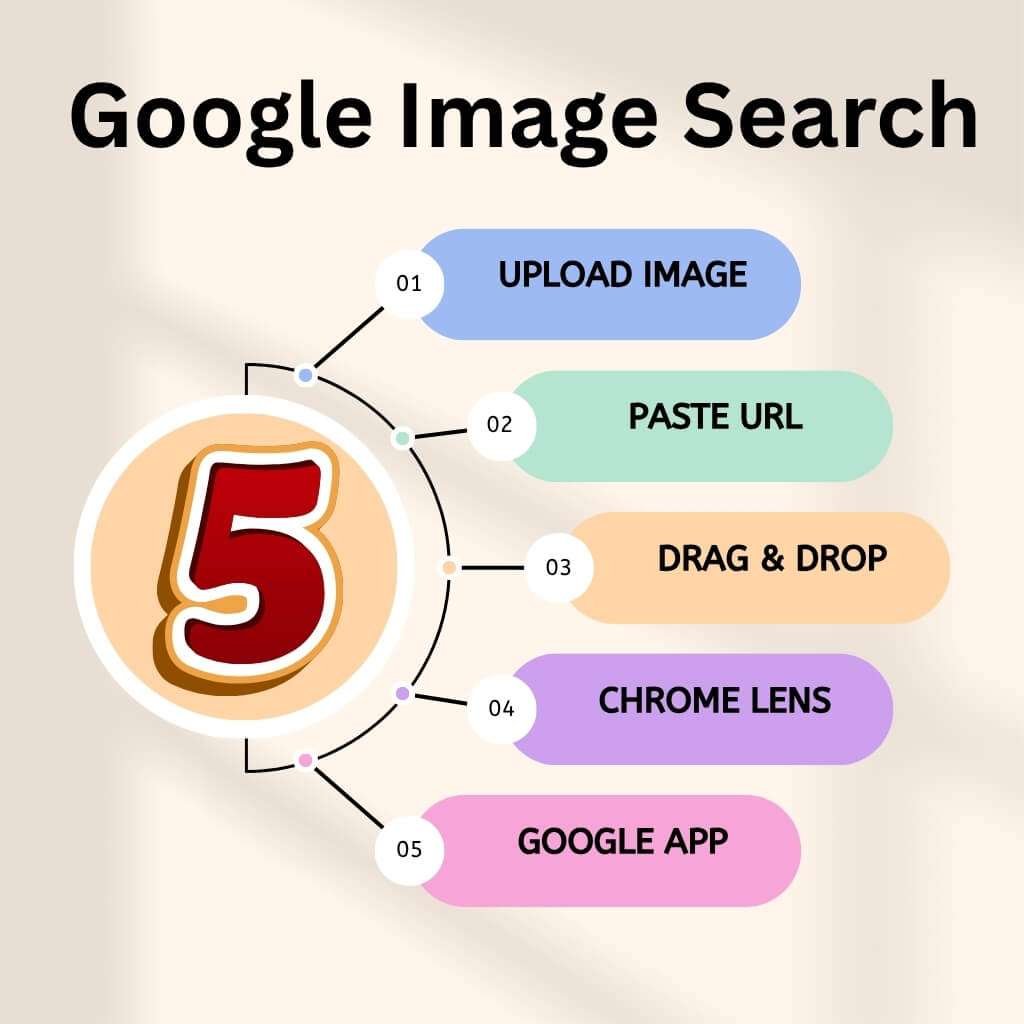
Here you’ll find precise steps to use Google’s visual search on your computer and phone. No fluff.
A . On Desktop
1) Upload an image
Go to images.google.com.
Click the camera icon.
Choose “Upload an image” and pick your file.
Hit Search.
Pro Tip: Use a square image of 1000×1000 px or bigger so the object is clear.
2) Paste an image URL
Right-click an image on any site → “Copy image address”.
On images.google.com, click the camera icon → “Paste image URL”.
Click Search.
Pro Tip: Use a direct image link (ends in .jpg/.png) – not a page link.
3) Drag-and-drop
Open images.google.com in Chrome.
Drag a file from your desktop or folder into the search box.
Release and wait for results.
Pro Tip: Rename the file with keywords (e.g., “red-running-shoes.jpg”) so any fallback text approach works.
4) Right-click via Chrome
In Chrome, right-click an image.
Select “Search image with Google Lens”.
A side panel opens, showing matches and links.
Pro Tip: If you don’t see this option, update Chrome or check “Enable Lens features” in chrome://flags.
B . On Mobile
1) Google app with Lens
Open the Google app.
Tap the camera icon (Lens).
Choose “Take photo” or “Gallery”.
Tap the subject in view to refine results.
Pro Tip: Hold your phone steady for two seconds after tapping to let Lens lock focus.
2) Chrome app: long-press image
In Chrome mobile, long-press any image.
Tap “Search image with Google” or “Search with Google Lens”.
Review the results.
Pro Tip: Switch to “Desktop site” mode if results seem incomplete.
3) Use a camera/gallery photo via Lens
In the Google app or Chrome, open Lens.
Switch to the gallery tab.
Pick a photo.
Use the “Tap” or “Circle” tool to focus on a section of interest.
Pro Tip: Highlight a distinct feature (logo, shape, text) for stronger matches.
Why doesn’t “search by image” work sometimes?
a) The image is blurry, under-exposed or small.
b) The object is uncommon, new or not well indexed.
c) The image URL is blocked or protected (hotlink protection).
d) Browser extensions or settings block Lens functions.
e) The internet connection is weak or intermittently dropping.
Tip: Try a clearer image, remove cropping and ensure your browser is updated. Issues of “no results” are often due to focus or indexing gaps.
Privacy & Data Use
1 . Google processes image uploads or captures to find matches and serve results.
2 . You can control saved data in your Google account.
3 . Avoid uploading images with sensitive personal data unless necessary.
4 . Most queries remain anonymous, but if you’re signed in, you may see results tied to your account.
5 . Check your Activity Controls in Google Settings for full details on how images are handled.
How Google’s AI Finds What’s Inside the Image
Google does more than match pixels. It reads an image like a human.
It blends vision, text and web signals to form an answer.
A) Object detection: what the system sees first
1 . The model scans the image for shapes and edges.
2 . It separates foreground objects from the background.
3 . It labels each object (shoe, face, logo, plant).
4 . It then crops or masks that object for deeper checks.
Precise object slices make follow-up lookups more accurate. (Source: Google Lens docs and multisearch announcement).
B) Context matching — how Google finds meaning
1 . The AI looks at the scene around the object.
2 . It reads colors, settings and nearby items.
3 . It links those cues to likely intents (shopping, ID, place).
4 . It ranks results that best match both object and scene.
Example: a handbag on a runway will surface fashion pages. (Source: Google AI Mode updates).
C) Metadata & structured signals — clues from the web
1 . Google pulls file names, alt text and schema markup.
2 . It reads captions and the surrounding page text.
3 . It uses EXIF data if available (camera, geo).
4 . It checks product feeds and merchant data for commerce cases.
Images with clear metadata perform better in visual search. (Source: Google Shopping & Lens shopping notes).
D) Surrounding text analysis — the page tells a story
1 . The crawler reads headings, paragraphs and captions near the image.
2 . It checks reviews, specs and structured product details.
3 . It looks for authoritative citations and trusted pages.
4 . The model weights these sources when building an answer.
Result: an image from a product page with specs ranks higher than a random repost.
E) Multimodal fusion — image + text + follow-up queries
1 . Google merges visual and textual signals into one query.
2 . You can add text to an image (multisearch).
3 . The system refines results using both inputs.
4 . This works well for color, brand, or attribute filters.
Example: “Show me this shoe but in black.” (Source: multisearch page and AI Mode expansion).
F) Intent detection — what the user really wants
1 . The AI looks for purchase intent, info intent, or location intent.
2 . It maps image clues to those intents.
3 . It pulls the right type of result (shop links, how-to guides, maps).
4 . Lens plus SGE now chooses formats (cards, shopping tiles, local listings) based on intent.
(Source: Google AI Mode + Shopping graph notes).
G) Where visual results appear (beyond Images)
Google Shopping — product matches, prices and merchant pages.
Google Maps / Local — businesses and landmarks found via photos.
YouTube — Lens can now search inside Shorts and overlay results on paused frames.
Search results (SGE) — image inputs can return AI summaries plus visual links. (Source: Google Shopping blog, YouTube Lens rollout, SGE updates).
How accurate is Google’s search by image now?
Much better than before.
Multimodal models read images and text together. That raises match quality.
Google’s shopping and Lens updates report billions of monthly visual queries. Many succeed, especially for well-documented products.
But accuracy still falls with rare items, tiny details, or low-quality photos.
If you want higher accuracy: use clear photos, add context text and host images on authoritative pages. (Sources: Google Lens + Lens shopping stats and industry reports).
Human + machine — why editors still matter
1 . Humans create the signals machines trust.
2 . Good captions, specs and reviews feed the model.
3 . Curated pages get cited more often by AI summaries.
4 . Fact-checked sources reduce hallucination risk in AI answers.
Net: machines read. People supply the proof.
Case study — eBay (visual search for discovery)
Company: eBay (marketplace)
What they did: eBay researched image-first shopping. They built a visual search to let buyers find items using photos and iterative feedback.
Result: Shoppers found hard-to-describe items faster. Visual search improved discovery in vintage and niche categories.
Marketplaces that support visual search send buyers who start with images. Your product images can drive discovery there, too.
What’s Next: Visual Search Trends and Tips
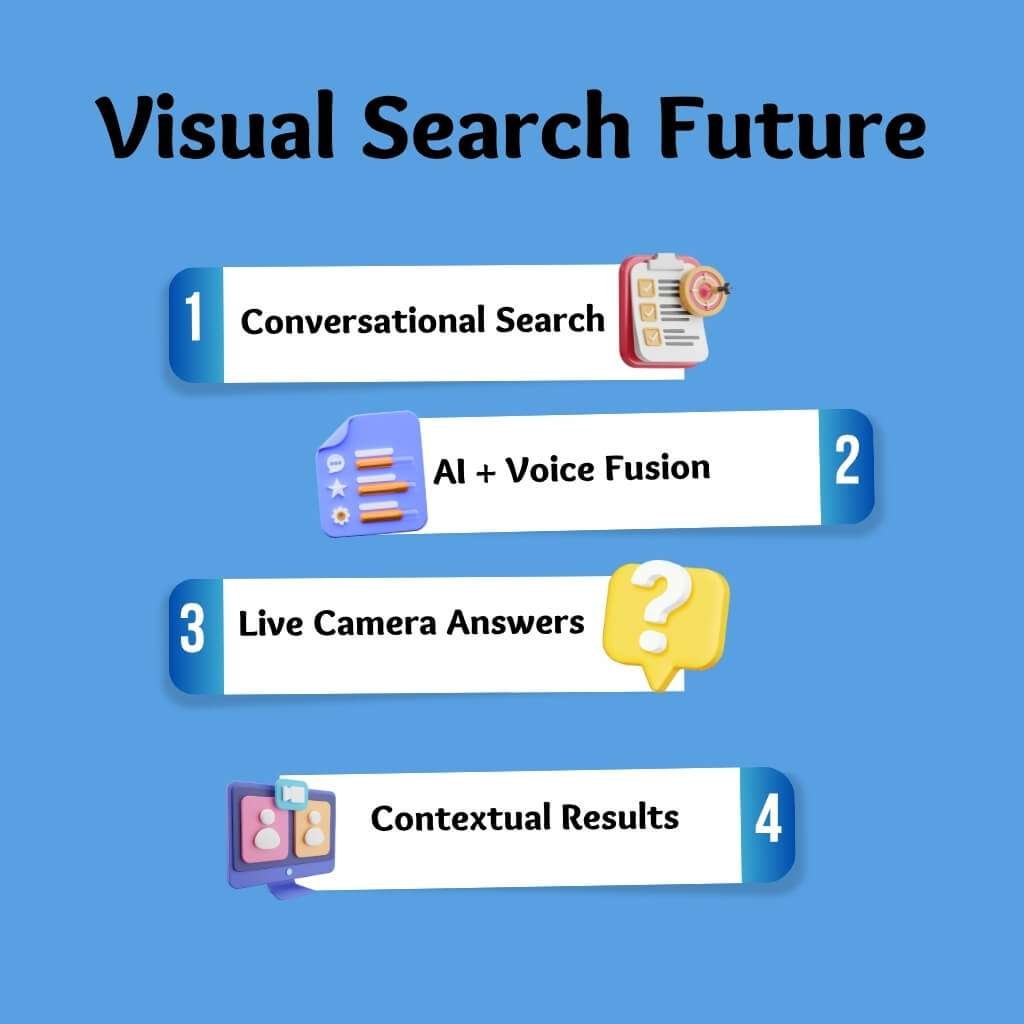
Visual search will get more conversational. It will mix images, voice and generative answers.
Let’s examine the trends and practical steps creators and brands should use now.
A) How AI search will evolve (visual + voice + generative)
1 . Search will accept images, then follow with voice or typed questions.
2 . Google’s AI Mode now supports image input inside a flowing conversation.
3 . “Live” camera sharing lets users show camera feed and get spoken answers. This is in U.S. rollout tests.
4 . Generative outputs will use the image as context. You can ask follow-ups like “How to style this?” or “Where to buy this?” and get a short plan plus links.
Users will expect short, spoken or visual answers. Sites that surface clear visual facts will appear in those answer cards.
B) How creators and brands should prepare (exact steps)
Filenames — make them descriptive and consistent. Use this pattern: brand-product-model-color-size.jpg. This helps image fallback when AI reads the file text.
a) Alt text — write intent-first alt text.
Start with the object, then add unique detail.
Example: “Oak coffee table 120cm with tapered legs, Aurora brand.”
b) Keep it short and factual.
Structured image data — add ImageObject and Product markup.
For product pages include: @type: Product, image: [urls], sku, gtin13, offers (price, currency, availability).
Example fields to include: image, name, description, brand, sku, gtin13, offers.
This gives AI sources it trusts for shopping results. (See Google Shopping docs).
c) Visual quality — show one subject per frame.
Use clear contrast and plain backgrounds when possible.
Provide multiple angles and a close-up that shows labels or tags.
d) Add short captions near images.
One sentence that names the object and context. Captions often feed AI summaries and increase citation chances.
e) Make images crawlable and fast.
Avoid lazy-loading that hides images from crawlers without proper markup. Use standard image URLs that return HTTP 200.
f) Test with Lens and AI Mode.
Upload your page images to Lens or AI Mode. Note what data the tool pulls and fix gaps.
These steps help your images show up in shopping tiles, answer cards and conversational results.
C) New AI updates you must know
1 . Google expanded AI Mode to handle images inside conversational flows. This makes follow-up Q&A on an image possible.
2 . “Search Live” lets users share live camera input with Search. This adds a voice-driven visual loop for tasks like cooking or repairs.
3 . Google improved image-to-shopping links. Lens now surfaces price, stock and local availability faster by linking its visual matches to the Shopping Graph.
What to do
Ensure your product feeds and local inventory data sync hourly. Rich, up-to-date feeds show in shopping overlays.
Future trend: image + generative search will merge
1 . You will upload an image and ask deep questions.
2 . The system will answer with a short plan, suggested products and action links.
3 . For shopping, the result will include sellers, reviews and local pickup options.
This means your content must provide clear facts and direct shopping paths. If AI can’t find facts on your page, it will pull from other sources and may not credit you.
Will Google replace text search with image search?
No. Image search will join text search. They will work together. Search will become multimodal. Text still matters. Pages with clear copy plus clear images will win both text and image queries.
Expert Voice
Bill Ready, CEO of Pinterest:
“People often find it hard to put a look into words. Visual search fills that gap. Brands that prepare their catalogues for images win discovery.”
(Source: Pinterest business updates and keynote).
Case study — Pinterest (visual discovery + commerce)
Pinterest expanded visual discovery tools in 2024–2025. They improved shoppable pins and trend signals. Brands can upload full product catalogs to appear inside visual feeds and “where-to-buy” widgets.
Outcome:
Pinterest reports strong engagement from Gen-Z shoppers. The platform ties visual queries to shopping actions and local inventory.
Advertisers saw improved ROAS in test campaigns that used enriched product catalogs.
Pinterest shows that visual discovery can directly convert. If your catalog appears in visual searches on Pinterest, you gain a buyer who began with an image and ended at checkout. (Source: Pinterest Business newsroom and Pinterest Presents 2025 overview.)
Conclusion
Search by image Google now looks for meaning. It will not only match pixels. It will answer questions about use, price and place. Think of images as tiny pages. Make each image stand alone. Then your site will get found by people who search with their eyes.
FAQ
Can I talk to Google while using an image?
Yes. Upload a photo and ask a question. Google combines what it sees and hears. You get precise results faster.
Will moving images like GIFs work in search?
Partially. Google reads a clear frame from the GIF. Static images still give better matches.
Can I search only part of an image?
Yes. Highlight a logo, label, or object. Google identifies just that part.
Will image search show local stores?
Yes. A photo of a product or storefront shows nearby shops. You can see hours and availability.
Does dark mode affect results?
Not much. Google reads the raw image file. Clear contrast ensures it recognizes objects correctly.
Will videos replace images in search?
No. Videos help with extra angles or 360° views. Static images are still the main source for results.
Can AI read handwritten labels or text in photos?
Yes. OCR can read handwriting on products or signs. It works best on clear, large text.
Will Google remove duplicate images?
Yes. Copies without a unique context may not appear. Adding captions or descriptive text keeps images visible.
Can image search suggest alternative products?
Yes. Google shows similar items, colors, or styles. This helps users explore options quickly.
Can non-product sites benefit from visual search?
Yes. Blogs, guides, or news pages can appear if images are clear and descriptive. Structured markup increases visibility.

Aliza Khatun is a Digital Marketing Professional and the founder of DigiGenHub. She has helped various businesses grow their online presence through real-world experience in marketing, branding, traffic growth, and business strategy.
Through DigiGenHub, she shows how to build and grow a business from the ground up using Website Setup, SEO, Branding, Paid Promotion, and smart digital tools.
She also highlights how AI can be used to its full potential to make content creation, automation, marketing, and business growth faster and smarter.
She believes that the right knowledge, modern technology, and the right tools can help any individual or business build a stronger online presence.